Turn on AutoFill on iPhone
Sign in with a tap: SecureKeep offers the right login, and saves new ones as you go.
-
Turn on AutoFill for a vault
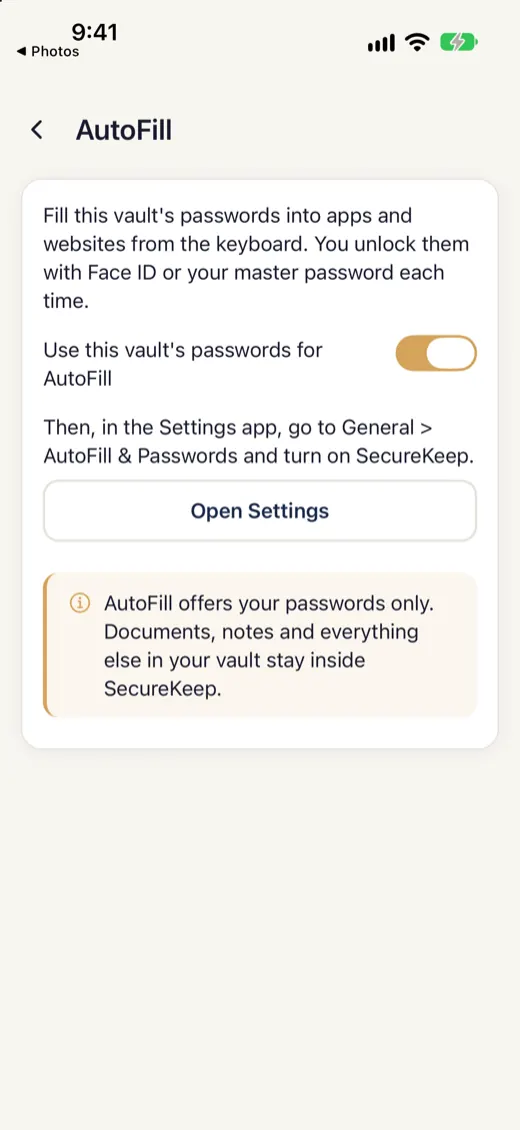
Open SecureKeep and go to Settings › AutoFill. Switch on Use this vault's passwords for AutoFill and enter the master password once to confirm.
-
Choose SecureKeep in iPhone Settings
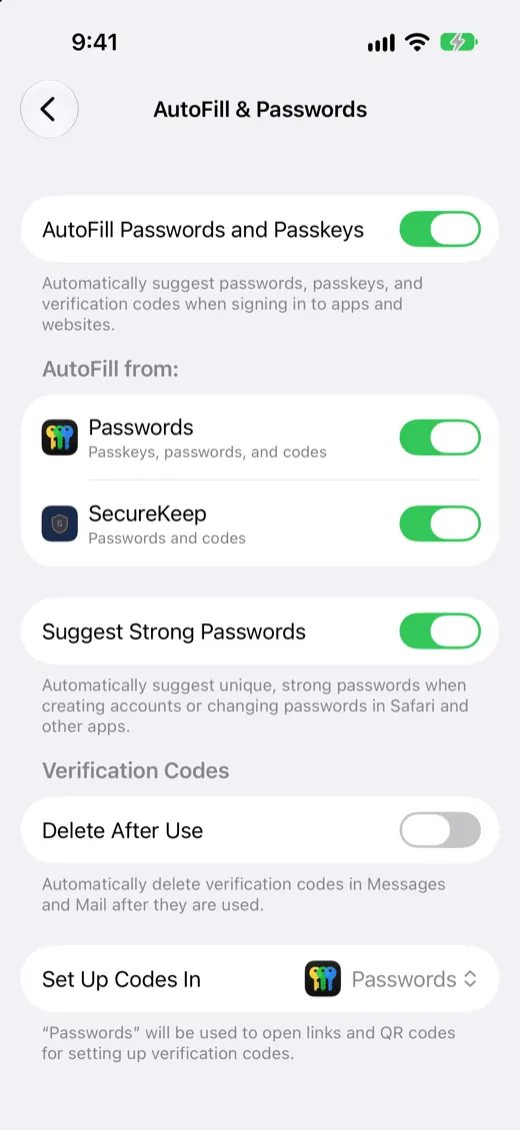
Tap Open Settings, then go to General › AutoFill & Passwords and switch on SecureKeep under AutoFill from.
-
Fill a login
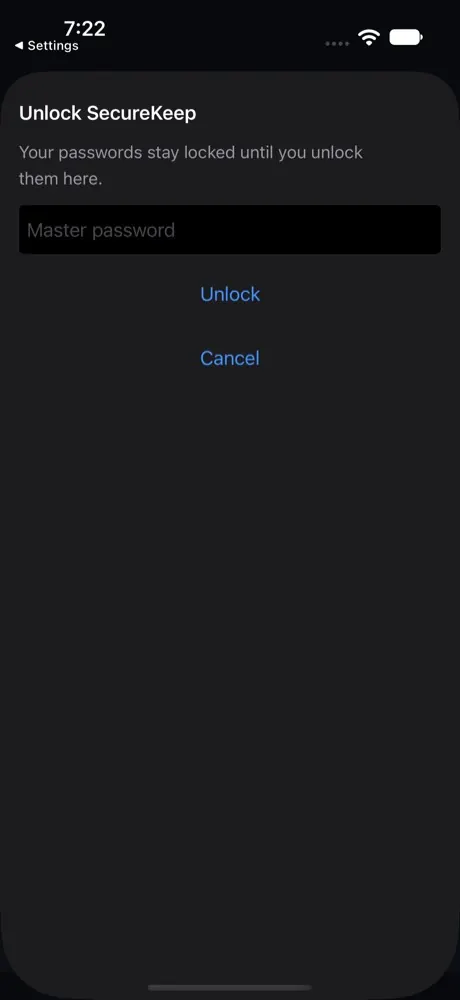
Tap the username or password box on a sign-in page, then tap the key above the keyboard and choose SecureKeep. Unlock with Face ID, or enter your master password.
-
Pick the login
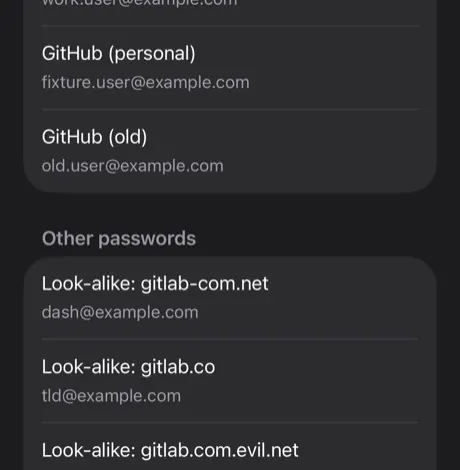
SecureKeep shows the logins saved for this website. Tap the one you want and it fills in. Logins for other websites only show if you search for them.
-
Save a new login
On iOS 26.2 and later, when you sign in with a login SecureKeep doesn't have, your iPhone offers to save it. Say yes. It waits, locked, until you next open SecureKeep and file it.
-
Fill a two-factor code
On iOS 18 and later, tap a code box and choose SecureKeep to fill the current code for a login that has one. If a code is about to change, SecureKeep waits for the next one.
Good to know
- AutoFill offers your passwords only. Documents, notes and everything else in your vault stay inside SecureKeep.
- You unlock with Face ID or your master password each time. SecureKeep never leaves your vault open for it.
- Saving a login needs iOS 26.2 or later, and two-factor codes need iOS 18 or later.
If it doesn't work
- SecureKeep isn't offered in Safari
- Check General › AutoFill & Passwords in the Settings app: SecureKeep must be switched on. Some iPhones turn it off after a restart, so look again if it stops.
- It asks for my master password, not Face ID
- Face ID is off for that vault, or you added a new face. Use your master password once, then open SecureKeep and unlock it, and Face ID works again.
- A login isn't offered on a website
- SecureKeep fills a login on the website saved with it and that site's subdomains, never on a look-alike. Check the web address saved with the login. On pages that aren't secure (http), no logins are offered.
- Autofill stopped after a restore
- Replacing a vault from a backup turns its AutoFill off. Open SecureKeep, go to Settings › AutoFill and turn it on again.
Does your screen look different from this guide? Tell us and we'll update it.