Turn on autofill on Android
Fill your saved logins in apps and Chrome, and save new ones as you sign in.
-
Turn on AutoFill for a vault
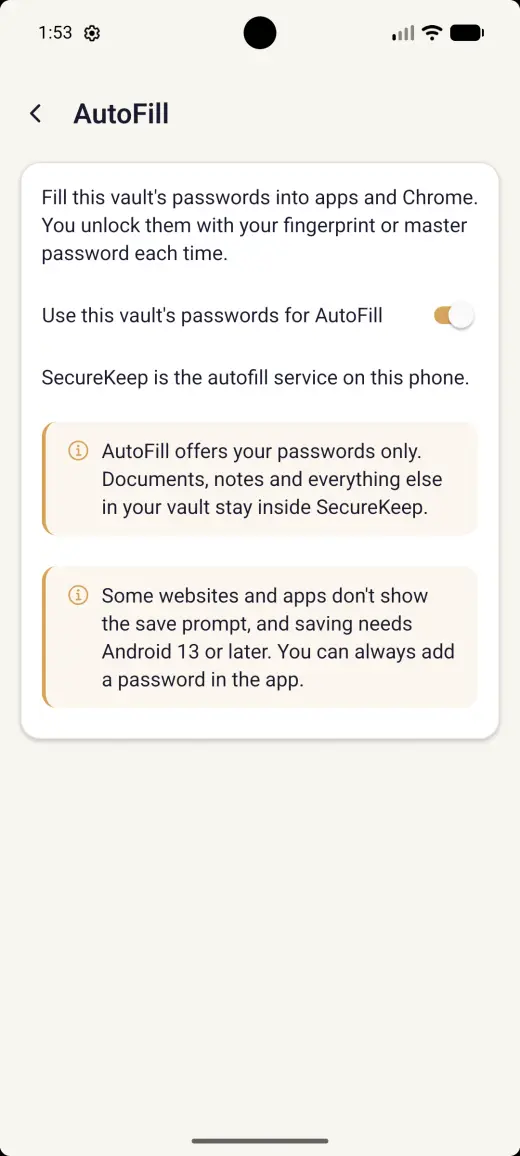
Open SecureKeep and go to Settings › AutoFill. Switch on Use this vault's passwords for AutoFill and enter the master password once to confirm.
-
Choose SecureKeep as the autofill service
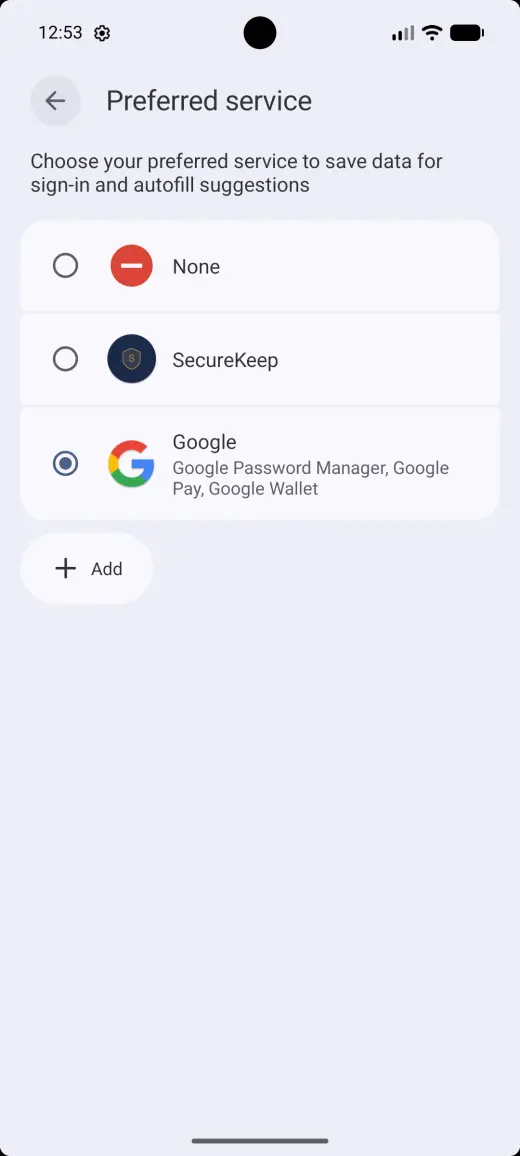
Tap Choose SecureKeep. Android asks which service to use: pick SecureKeep, then Change. You come back to SecureKeep, which now says it's the autofill service on this phone.
-
Turn it on in Chrome
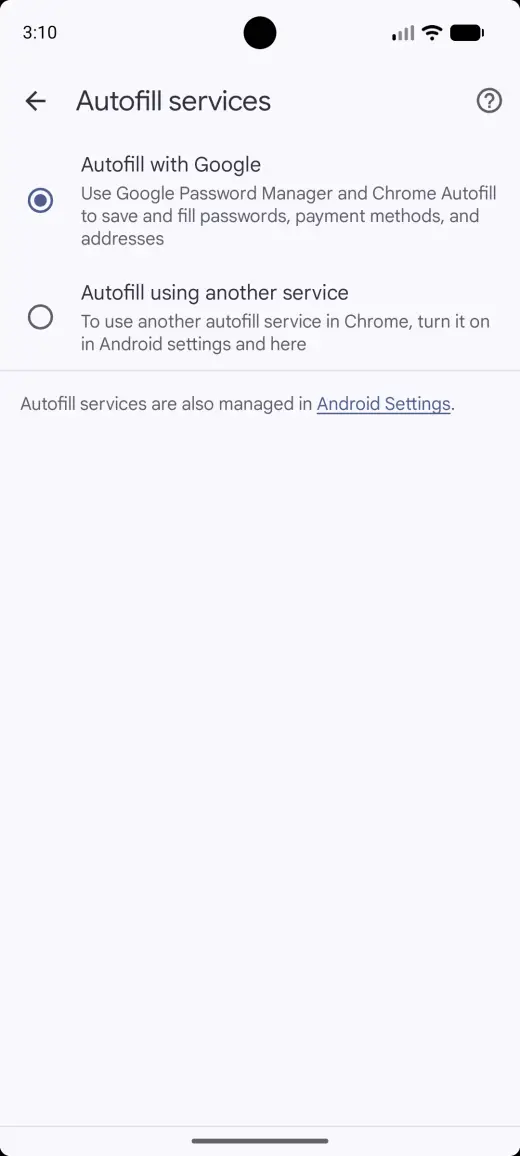
Chrome uses its own autofill until you change one setting. If SecureKeep sees it's off, Settings › AutoFill shows Use SecureKeep in Chrome: tap Open Chrome settings, choose Autofill using another service, then Restart Chrome. In Chrome yourself, it's Settings › Autofill services.
-
Fill a login
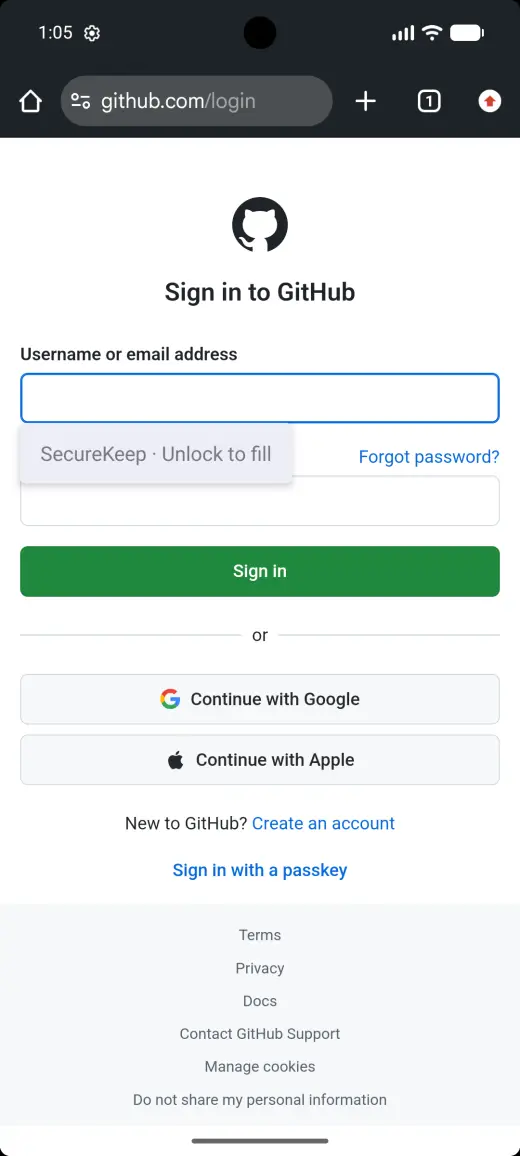
Tap the username or password box on a sign-in screen. Tap SecureKeep · Unlock to fill, then touch the fingerprint sensor, or tap Use master password. Nothing from your vault shows until you unlock.
-
Use it in an app
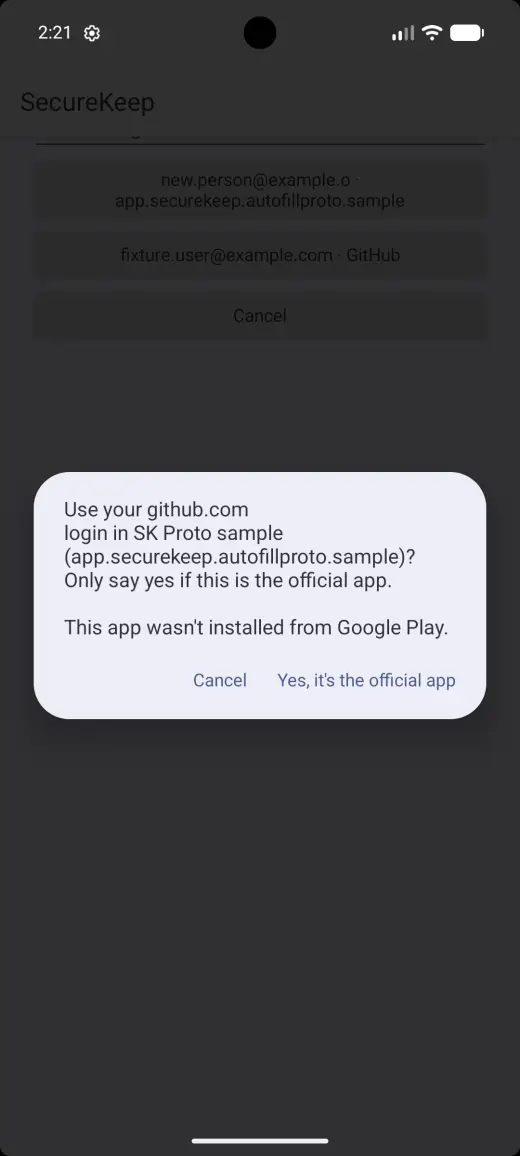
Apps don't say which website they belong to, so the first time you fill one, tap Show all logins and pick the login. SecureKeep asks whether this is the site's official app. Say yes only if it is. Next time that login fills straight after your fingerprint.
-
Save a new login
When you sign in with a login SecureKeep doesn't have yet, Android offers to save it to SecureKeep. Tap Save. It stays locked until you next open SecureKeep, where it's waiting to be filed.
Good to know
- AutoFill offers your passwords only. Documents, notes and everything else in your vault stay inside SecureKeep.
- In Chrome, turn on Autofill using another service. We'll show you where.
- Some websites and apps don't show the save prompt, and saving needs Android 13 or later. You can always add a password in the app.
If it doesn't work
- SecureKeep isn't offered in Chrome
- Chrome uses its own autofill until you change it. In Chrome, go to Settings › Autofill services, choose Autofill using another service, then tap Restart Chrome. If it still doesn't offer SecureKeep, close Chrome completely and open it again. Chrome in a work profile has its own setting.
- There's no fingerprint prompt
- Fingerprint unlock for autofill needs Android 11 or later and a fingerprint set up on the phone. If you've just added a fingerprint, use your master password once, then open SecureKeep and unlock it.
- It says too many tries
- Wrong master passwords in autofill count toward the same wait as SecureKeep's lock screen. Wait for the time shown, then try again.
- A login isn't offered on a website
- SecureKeep fills a login on the website saved with it and that site's subdomains, never on a look-alike. Check the web address saved with the login in SecureKeep.
- Autofill stopped after a restore
- Replacing a vault from a backup turns its autofill off. Open SecureKeep, go to Settings › AutoFill and turn it on again.
Does your screen look different from this guide? Tell us and we'll update it.