Use Siri and Shortcuts with SecureKeep
On iPhone, Siri, Spotlight, the Shortcuts app and the Action Button can open your emergency card, Record a message or Add a document in one step. SecureKeep always asks you to unlock first.
-
Find SecureKeep in the Shortcuts app
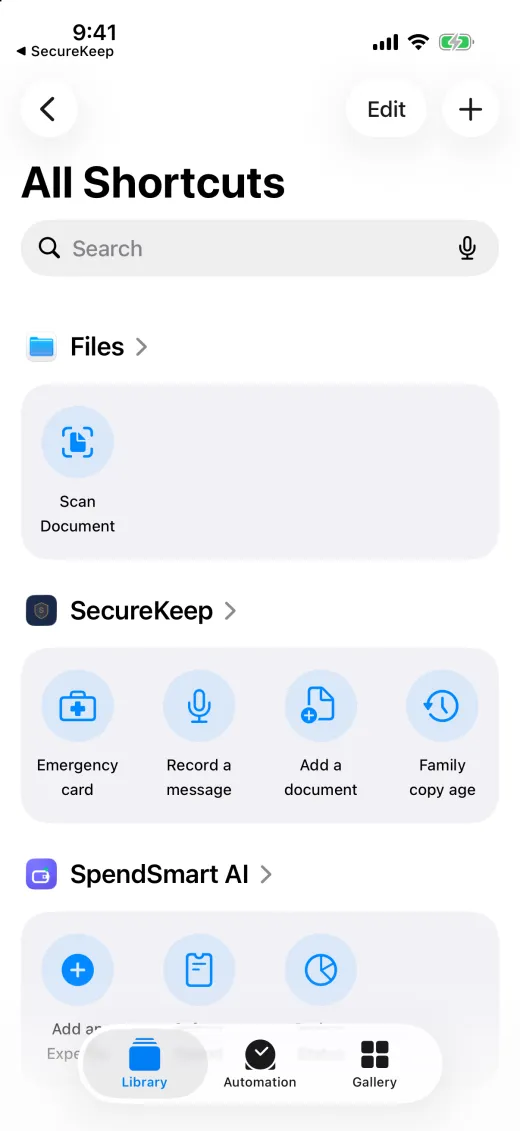
Open the Shortcuts app. SecureKeep's four shortcuts are already there, under SecureKeep, with nothing to set up: Emergency card, Record a message, Add a document and Family copy age.
Tap one to run it. If you've only just installed or updated SecureKeep, open it once first.
-
Ask Siri, or search for it
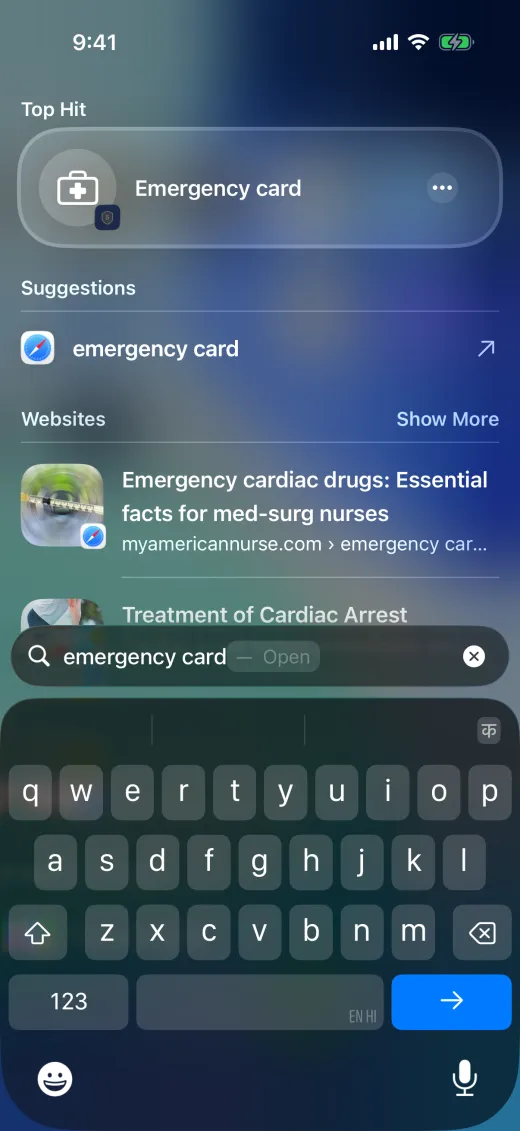
Say "Open my emergency card in SecureKeep", "Record a message in SecureKeep" or "Add a document to SecureKeep". You can also swipe down on the Home Screen and type emergency card.
SecureKeep opens on its lock screen. Unlock it the way you always do and it goes straight to that screen. Recording messages is part of SecureKeep Pro.
-
Ask how old your family's copy is
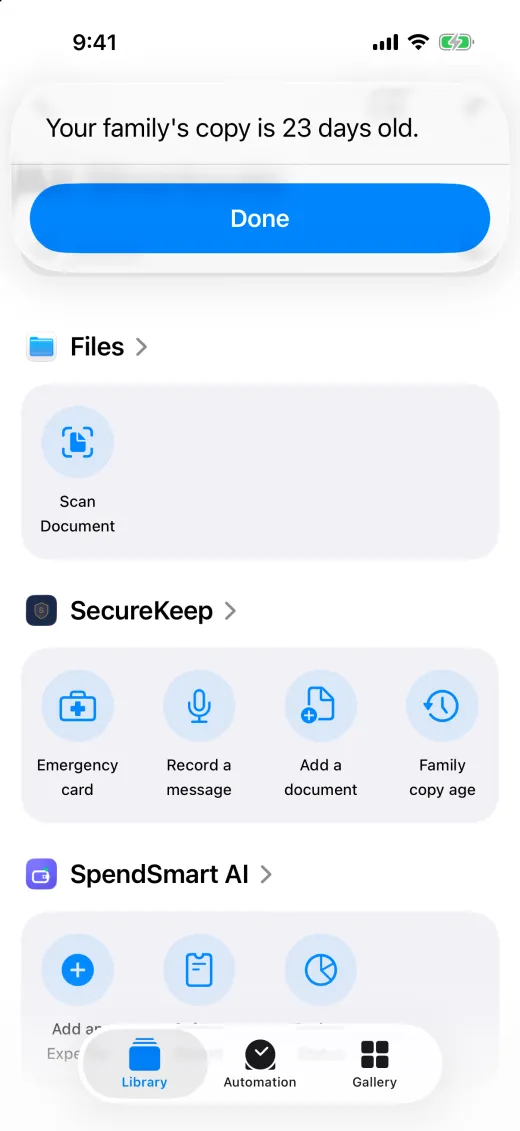
In SecureKeep, go to Settings and turn on Show numbers on widgets and Siri. Then say "How old is my family's SecureKeep copy" or tap Family copy age.
You'll get an answer like "Your family's copy is 23 days old." This one works without opening SecureKeep, but your iPhone needs to be unlocked. With the setting off, the answer is "Open SecureKeep to check."
-
Put one on the Action button
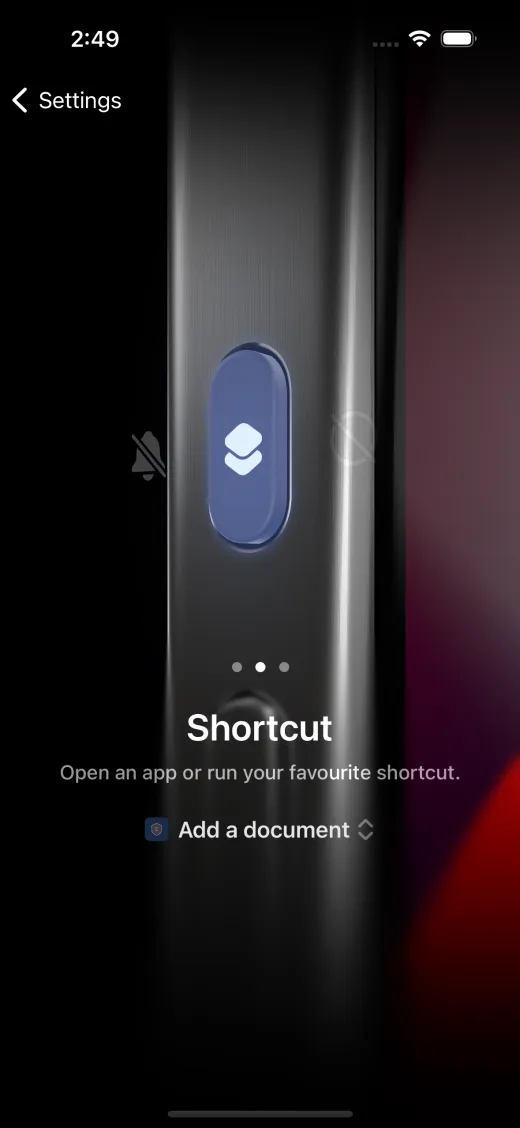
On iPhone 15 Pro and later, open Settings, tap Action Button, swipe to Shortcut and tap Choose a Shortcut. Tap SecureKeep, then the one you want, such as Add a document.
Press the button and SecureKeep opens on its lock screen, then on Add Document once you've unlocked.
-
Make a monthly reminder to record a message
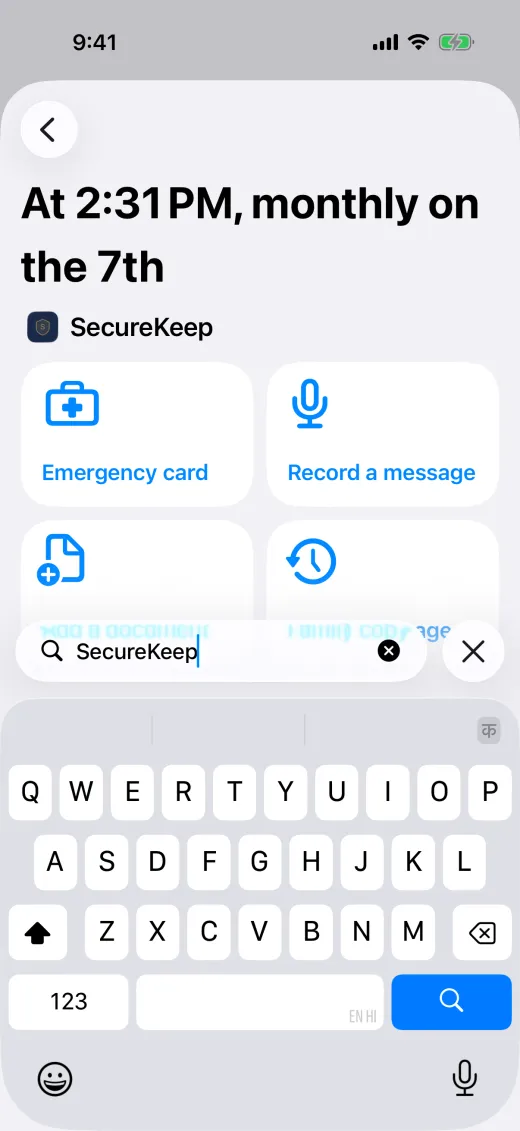
In the Shortcuts app, tap Automation, then New Automation and Time of Day. Pick a time, choose Monthly and the day, for example the date of someone's birthday, and tap Next. Search for SecureKeep and tap Record a message.
Each month on that day your iPhone asks whether to run it, and SecureKeep opens Record a message once you've unlocked. Shortcuts can repeat daily, weekly or monthly, not yearly.
Good to know
- Siri can open SecureKeep. Type secrets in the app rather than saying them, because Apple may keep Siri requests for up to two years.
- None of SecureKeep's shortcuts asks you to say or type anything. They open a screen, and only after you unlock.
- The family-copy answer is a number of days, months or years. Siri never reads anything else from your vault.
- Shortcuts open the vault that was open last. Its name is at the top once you've unlocked.
- On Android, touch and hold the SecureKeep icon for the same shortcuts.
If it doesn't work
- SecureKeep isn't in the Shortcuts app
- Update SecureKeep and open it once, then look again. After an update it can take a minute to appear.
- Siri says "Open SecureKeep to check."
- Show numbers on widgets and Siri is off. Unlock the vault you want Siri to answer for and turn it on in Settings.
- Siri asks me to unlock my iPhone
- The family-copy answer only plays on an unlocked iPhone, the same way the widget hides its numbers on the lock screen.
- It opened the dashboard instead
- If you waited more than five minutes before unlocking, SecureKeep forgets where you were going. Run the shortcut again.
Does your screen look different from this guide? Tell us and we'll update it.