Pin your emergency card for a paramedic
Show a medic locks your vault and puts only your medical details on screen, so you can hand your phone to a paramedic without opening everything else.
On Android
-
Open your emergency card
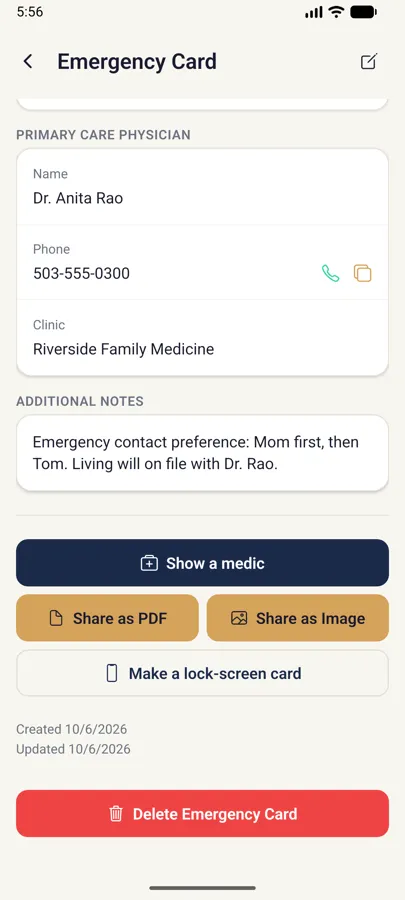
Unlock your vault and tap Emergency Card on the home screen. Scroll to the bottom and you'll find Show a medic above the share buttons.
The button only appears once your card has medical details in it, like your blood type, allergies or an emergency contact.
-
Tap the button and confirm
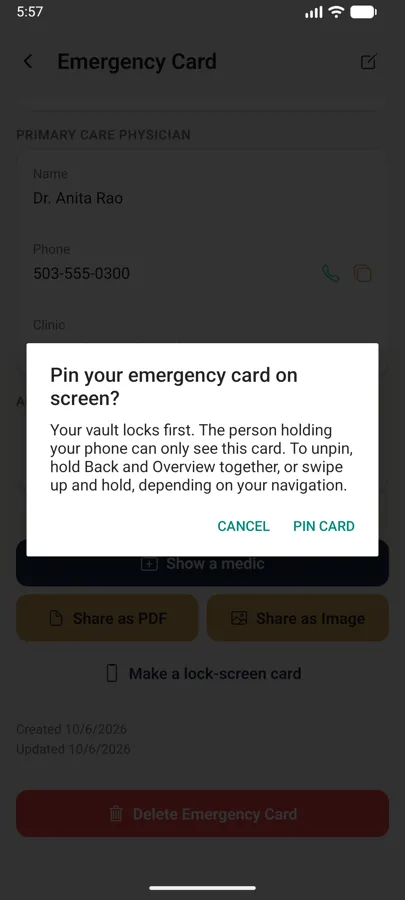
Tap Show a medic. SecureKeep asks Pin your emergency card on screen? Your vault locks first, and the person holding your phone can only see this card. The question also tells you how to unpin, so you don't have to remember it.
Tap Pin card.
-
Let Android pin the app
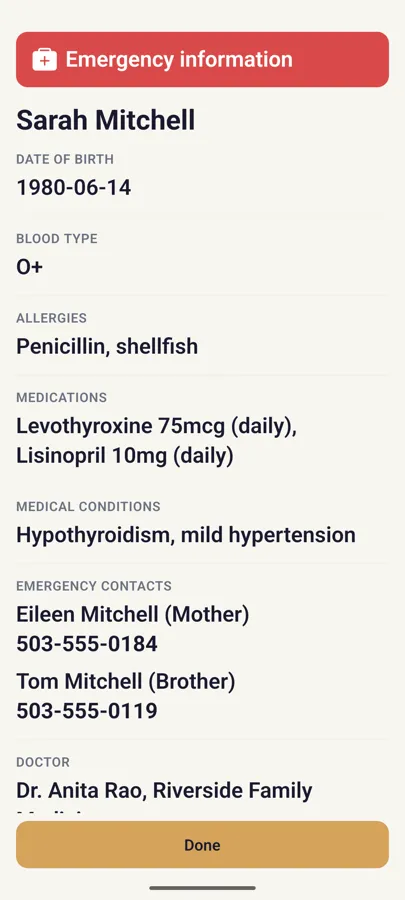
Your vault locks and a screen called Emergency information opens. It shows your name, date of birth, blood type, allergies, medications, medical conditions, emergency contacts and doctor. Your insurance and notes aren't on it, and phone numbers are plain text, not call buttons.
Android then shows its own prompt, App is pinned (Screen is pinned on older versions). Tap Got it. While the app is pinned, Back, Home and Recents all stay on the card. If you tap No thanks, the card stays on screen but isn't pinned.
-
Unpin it and tap Done
When you get your phone back, tap Done. The card closes and you land on the lock screen, with your vault still locked.
To unpin without Done, hold Back and Overview together, or swipe up and hold, depending on how you get around your phone. Leaving SecureKeep also closes the card.
On iPhone
-
Guided Access needs to be on
SecureKeep can't hold an iPhone on one screen by itself. Guided Access, which is built into iPhone, does that part.
Set it up once, ahead of time: open Settings, then Accessibility, then Guided Access, and turn it on. Under Passcode Settings, set a Guided Access passcode you'll remember.
-
Open the card and confirm
Unlock your vault, tap Emergency Card on the home screen and tap Show a medic. SecureKeep asks Show your emergency card? Tap Show card.
Your vault locks and the Emergency information screen opens, with only your medical details, emergency contacts and doctor. The screen also reminds you how to start Guided Access.
-
Triple-click the side button
Triple-click the side button, then tap Start. The phone now stays on the card while someone else holds it.
When you get it back, triple-click the side button again, enter your Guided Access passcode and tap End. Then tap Done, and you'll land on the lock screen with your vault still locked.
Good to know
- This pins the card on screen. To leave, hold Back and Overview together, or swipe up and hold (Android), or triple-click the side button (iPhone Guided Access).
- Your vault locks before the card opens, and stays locked after Done.
- The card never shows your insurance or your notes.
- Phone numbers on it are plain text, not call buttons.
If it doesn't work
- There's no Show a medic button
- Your card has no medical details yet. Tap the edit icon at the top right of the emergency card, add your blood type, allergies or an emergency contact, and save.
- Android: nothing happens when you accept the pin
- App pinning may be turned off. Open Settings, search for App pinning and turn it on (the wording varies by phone), then open the emergency card and tap Show a medic again.
- Android: you tapped No thanks
- The card stays on screen, but it isn't pinned. Tap Done, unlock your vault, open the emergency card and tap Show a medic again. This time tap Got it.
- Android: you can't get off the card
- Hold Back and Overview together, or swipe up and hold, depending on your navigation. Or just tap Done.
- iPhone: triple-clicking does nothing
- Guided Access is off. Turn it on in Settings, then Accessibility, then Guided Access. On an iPhone with a Home button, triple-click the Home button instead.
- iPhone: you can't leave the card
- Guided Access is still on. Triple-click the side button, enter your Guided Access passcode and tap End.
Does your screen look different from this guide? Tell us and we'll update it.