Scan a document
Scan a letter or policy with your phone's camera. SecureKeep reads the text on your phone and suggests the name, category, expiry date and reference number for you to check.
-
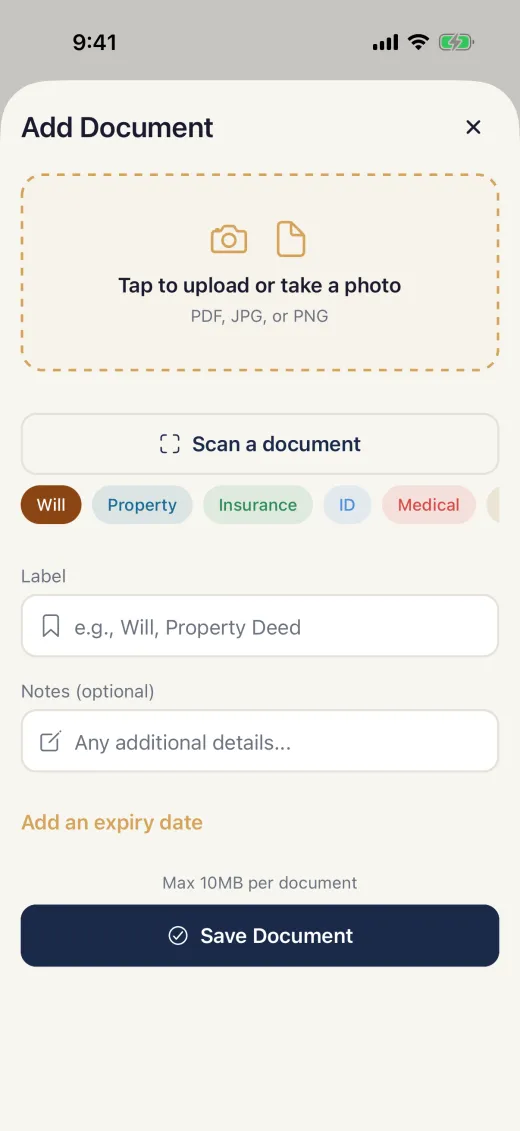
Open Add a document
In SecureKeep, tap the + button, then Document, and tap Scan a document.
The button shows on phones with a camera, and on Android only with Google Play services. Without it, you can still take a photo of the document.
-
Scan the pages
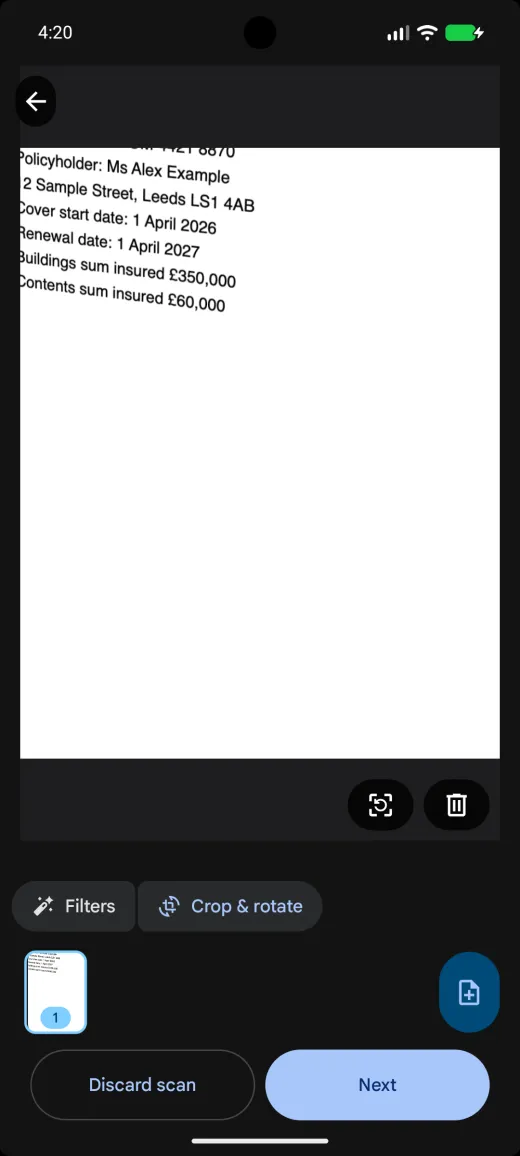
Hold the phone over the document on a flat, plain surface. The scanner finds the edges and takes the picture. Add more pages if the document has them, up to 10.
On iPhone tap Save; on Android tap Next. On Android you can also pick a photo you already have.
-
Check the details
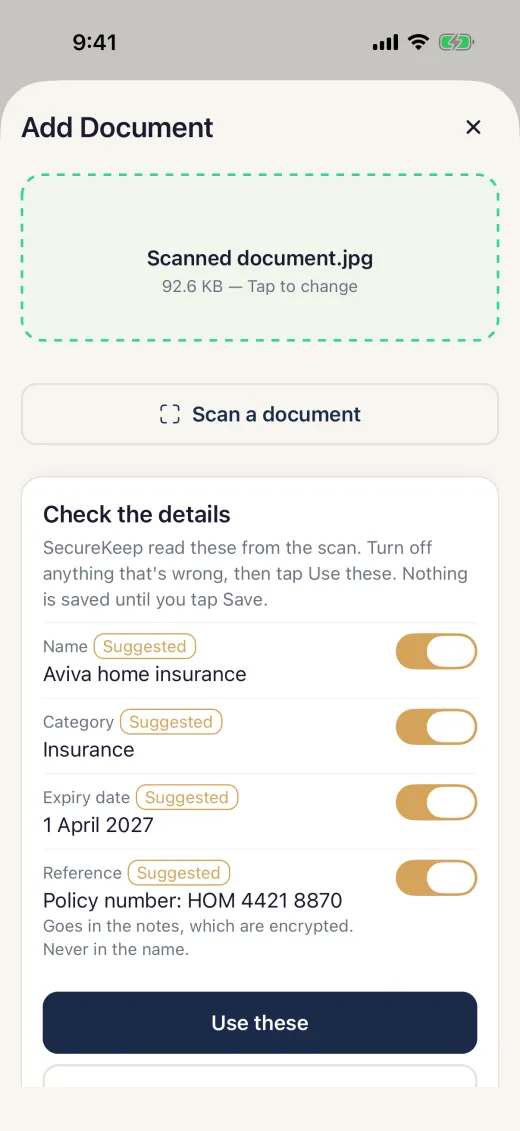
SecureKeep shows "Reading the text…", then what it found: a name, a category, an expiry date and a reference number, each marked Suggested with its own switch.
Turn off anything that's wrong, then tap Use these. Nothing is saved yet.
-
Save it
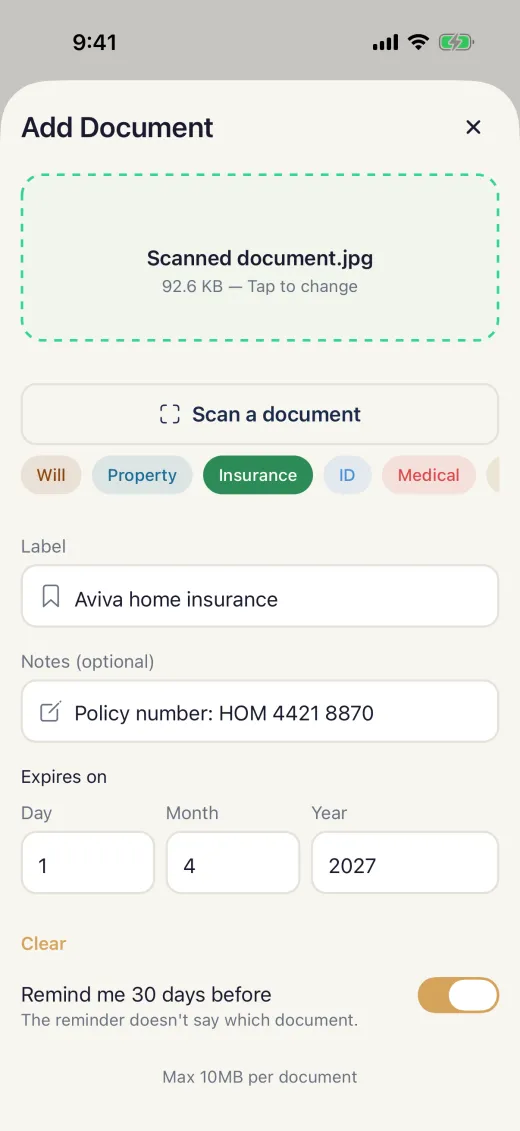
The details are now in the form, where you can change them. The reference number goes in the notes, which are encrypted, never in the name. With an expiry date you can have a reminder 30 days before.
Tap Save Document. One page is saved as a picture; more pages become one PDF.
Good to know
- SecureKeep uses the camera only while you scan. Check the suggested details before saving.
- On Android: Google Play services downloads the scanner once, like an app update. Nothing from your vault is sent anywhere.
- The suggestions come from simple rules on your phone, not AI, so they can be wrong. Each one has its own switch.
- A scan counts as one document toward the free limit of 10 items.
If it doesn't work
- There's no Scan a document button
- The phone has no camera, or on Android no Google Play services. Tap the upload area and take a photo instead.
- It says "Couldn't read any text."
- The scan is saved as it is; type the name yourself. Better light and a flat page help next time.
- It says "Text reading isn't ready on this phone yet."
- On Android the text reader downloads the first time. Save this scan, or scan again in a minute.
- It says "This scan is over 10 MB."
- Scan fewer pages at a time and save them as separate documents.
- A suggestion is wrong
- Turn off its switch before you tap Use these, or change it in the form before you save.
Does your screen look different from this guide? Tell us and we'll update it.