Save a photo or PDF to SecureKeep
Send a PDF or photo from another app into SecureKeep. It stays locked until you unlock, then you file it into your vault.
On Android
-
Share the file to SecureKeep
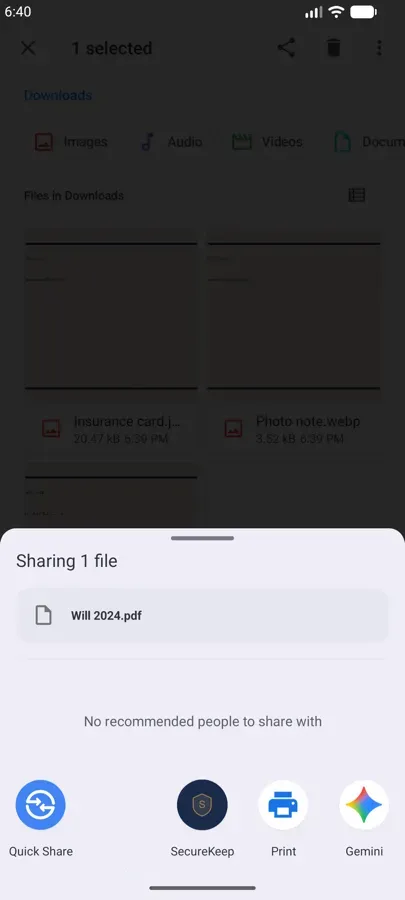
Open the photo or PDF in Google Photos, Files or Gmail and tap Share. Choose SecureKeep in the list of apps.
SecureKeep takes PDFs and photos (JPEG, PNG, HEIC, HEIF and WebP). It isn't offered for text or other kinds of files.
-
Save it locked
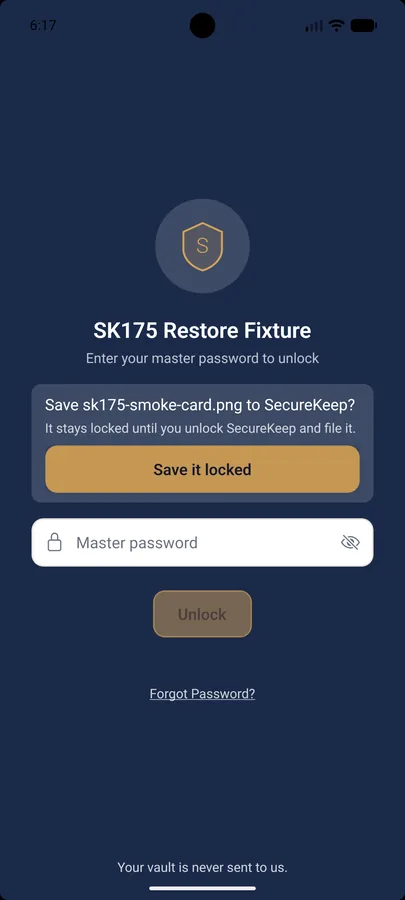
SecureKeep opens and asks Save Will 2024.pdf to SecureKeep? It stays locked until you unlock SecureKeep and file it. Tap Save it locked.
Nothing is read until you unlock.
-
Unlock and file it
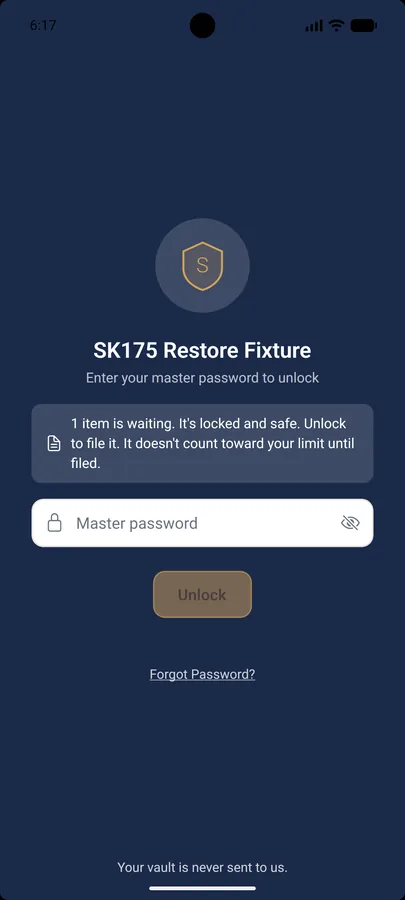
The lock screen now says 1 item is waiting. It's locked and safe. Unlock to file it. It doesn't count toward your limit until filed. Unlock as you normally do, with your master password or your fingerprint or face.
SecureKeep opens Waiting to be filed. Tap File on the item, check the label, pick a category and tap Save to vault. HEIC, HEIF and WebP photos are saved as JPEG.
-
Several files at once
If you shared more than one file, they all wait in Waiting to be filed. File or delete each one in turn.
On iPhone
-
Share it to SecureKeep
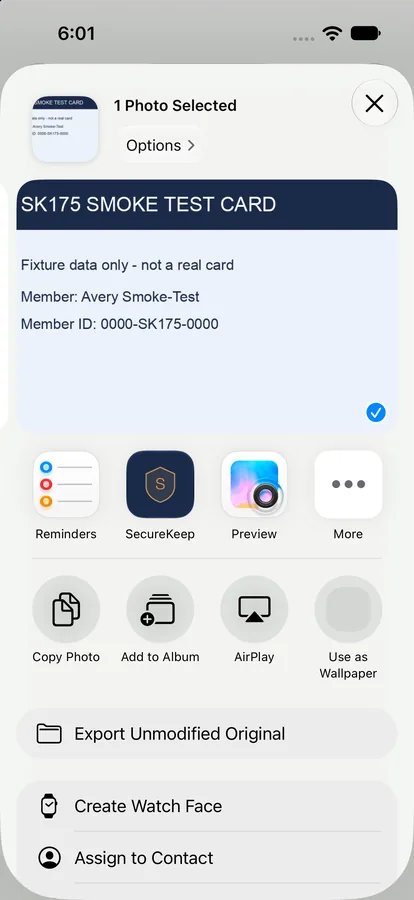
In Photos, open the photo and tap Share. Choose SecureKeep in the row of apps. In Safari, open the image, tap the page menu and then Share.
SecureKeep takes PDFs and JPEG, PNG and HEIC photos, up to 10 at a time.
-
Let SecureKeep save it
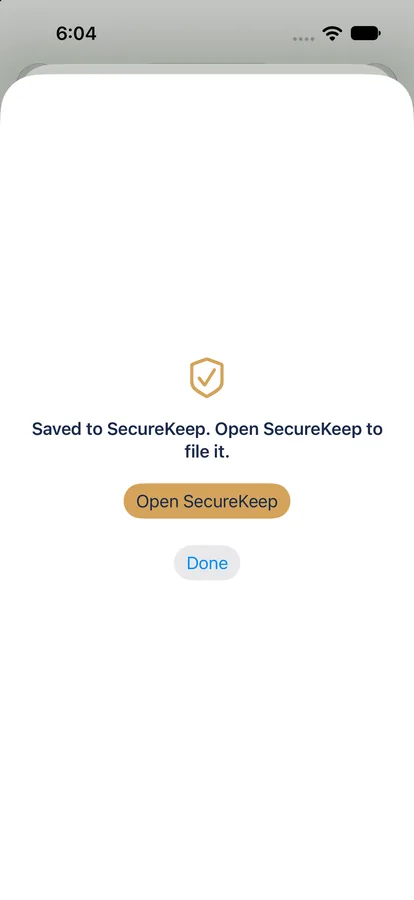
SecureKeep saves a locked copy and says Saved to SecureKeep. Open SecureKeep to file it. This works while SecureKeep is locked or closed. Tap Open SecureKeep to go straight there, or Done to carry on in the app you were in.
-
Unlock SecureKeep
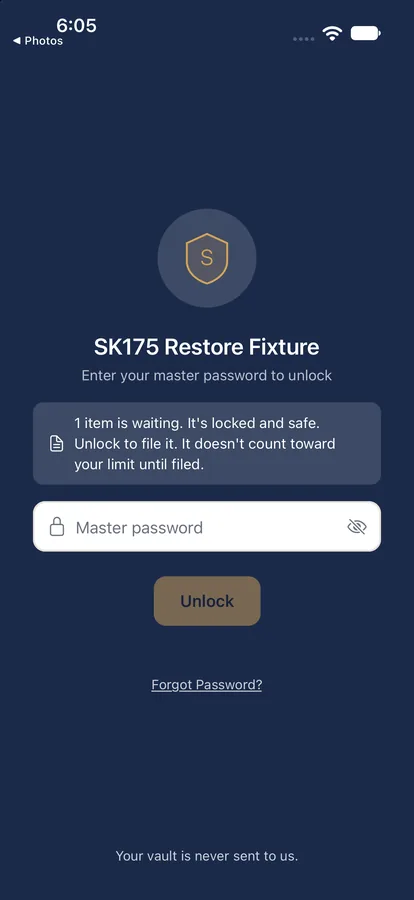
The lock screen tells you what's waiting: 1 item is waiting. It's locked and safe. Unlock to file it. It doesn't count toward your limit until filed. Unlock as you normally do.
-
File it
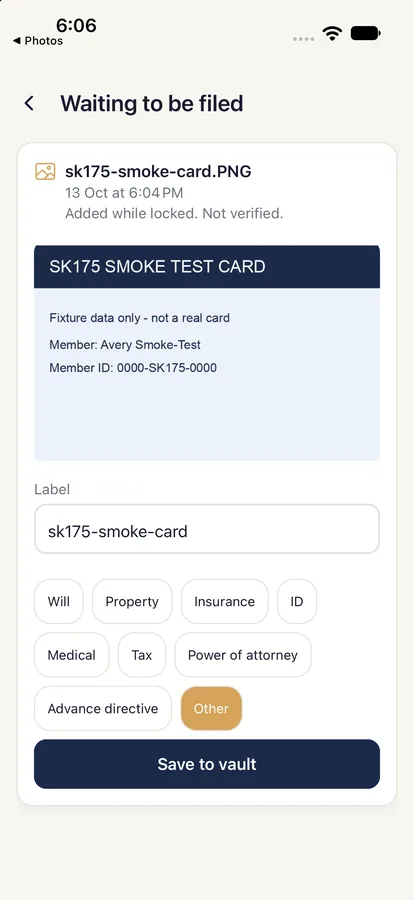
SecureKeep opens Waiting to be filed. Tap File on the item, check the label, pick a category and tap Save to vault. Tap Delete instead if you don't want it.
SecureKeep deletes the locked copy once you've filed or deleted it.
Good to know
- Files up to 10 MB.
- Files you share while SecureKeep is locked wait, locked, until you unlock and file them. They don't count toward your limit until filed.
- If your free vault is full, the upgrade screen opens and the shared file isn't saved.
If it doesn't work
- Android: SecureKeep isn't in the list of apps
- SecureKeep only shows up for PDFs and photos. It isn't offered for text or other kinds of files.
- iPhone: SecureKeep isn't in the row of apps
- Tap More at the end of the row and look for it there. SecureKeep is only offered for photos and PDFs, not for text, web pages or video.
- SecureKeep says "SecureKeep can save PDFs and photos."
- The file is another kind. SecureKeep can only save PDFs and photos.
- SecureKeep says "Files up to 10 MB."
- The file is too big. Save a smaller copy, or split a long PDF into parts and add each one.
- SecureKeep says it couldn't check the file's size
- Save the file to your phone first, then add it in SecureKeep.
- SecureKeep says "SecureKeep can't read that file any more. Share it again."
- The app you shared from took its permission back before SecureKeep could save the file. Share the file again.
- The upgrade screen opened instead
- Your free vault is full, so the shared file wasn't saved. Upgrade to Pro, or delete something you no longer need, then share the file again.
- iPhone: "Open SecureKeep and unlock it once, then share again."
- SecureKeep hasn't been unlocked on this iPhone yet. Open it, unlock it once, then share again.
- iPhone: "SecureKeep's inbox is full."
- Open SecureKeep and file or delete what's waiting, then share again.
- iPhone: "SecureKeep couldn't save this."
- Open SecureKeep, then share again.
Does your screen look different from this guide? Tell us and we'll update it.