Move to a new phone
SecureKeep walks you through making a locked copy of your vault on the old phone and opening it on the new one. Nothing goes through us.
Scan a code instead
With both phones on the same Wi-Fi, you can skip the file. On the new phone, tap Moving from another phone?, then Get it from my old phone. On the old phone, go to Settings, then Move to a new phone, and tap Scan a code instead. Point it at the code, check that both phones show the same six-digit number, and tap They match on each. The vault moves straight across, still locked; enter your master password on the new phone to open it. If the phones can't reach each other, use the steps below.
No Wi-Fi nearby
The phones can connect to each other directly. Choose No Wi-Fi nearby on both screens. An Android phone makes a private connection just for this transfer, and the other phone joins it when asked; your phone may lose internet for a minute. Two iPhones connect to each other by themselves; keep Wi-Fi and Bluetooth turned on in Settings, even with no network nearby. If the new phone is an iPhone and the old one is Android, the Android phone shows a join code first: scan it on the iPhone, then scan the iPhone's code with the Android phone as usual.
-
Make the locked copy on your old phone
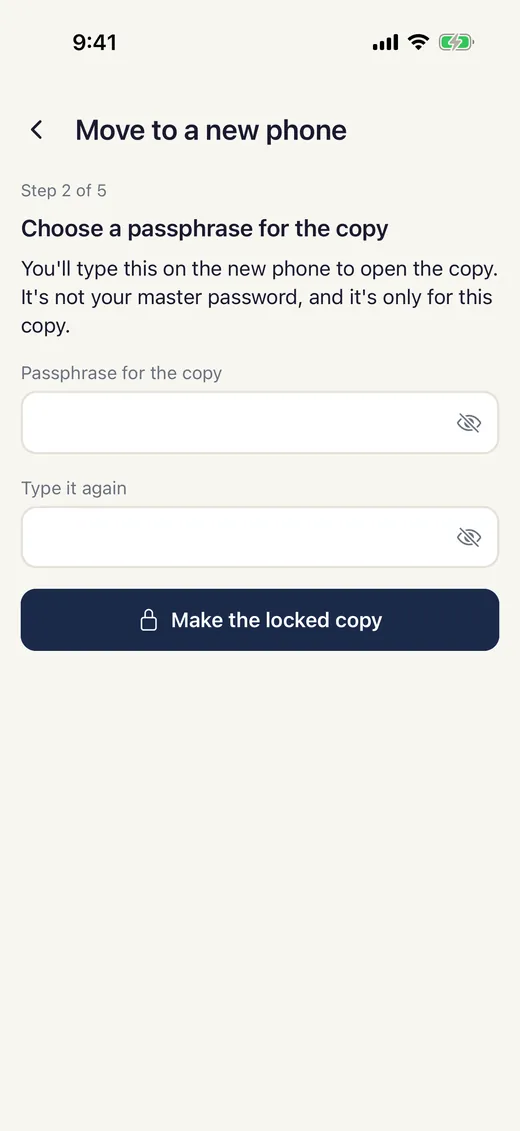
Open the vault you want to move. In Settings, tap Move to a new phone, then Start. Choose a passphrase for the copy and tap Make the locked copy. It isn't your master password; it's only for this copy.
-
Send it to the new phone
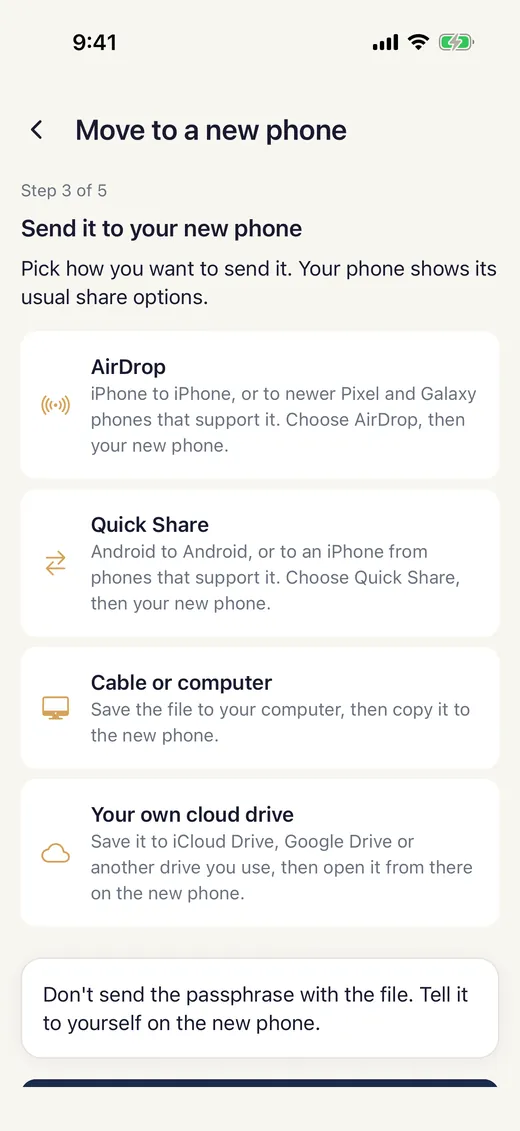
Pick AirDrop, Quick Share, a cable or your own cloud drive. AirDrop works between iPhones and to newer Pixel and Galaxy phones; Quick Share works between Android phones and to an iPhone from phones that support it. Don't send the passphrase with the file.
-
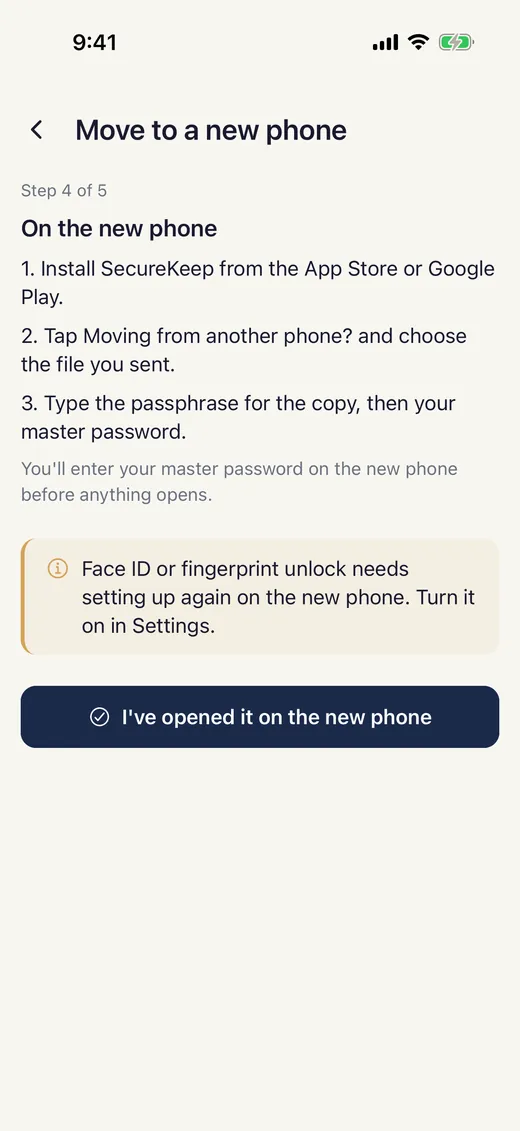
Install SecureKeep on the new phone
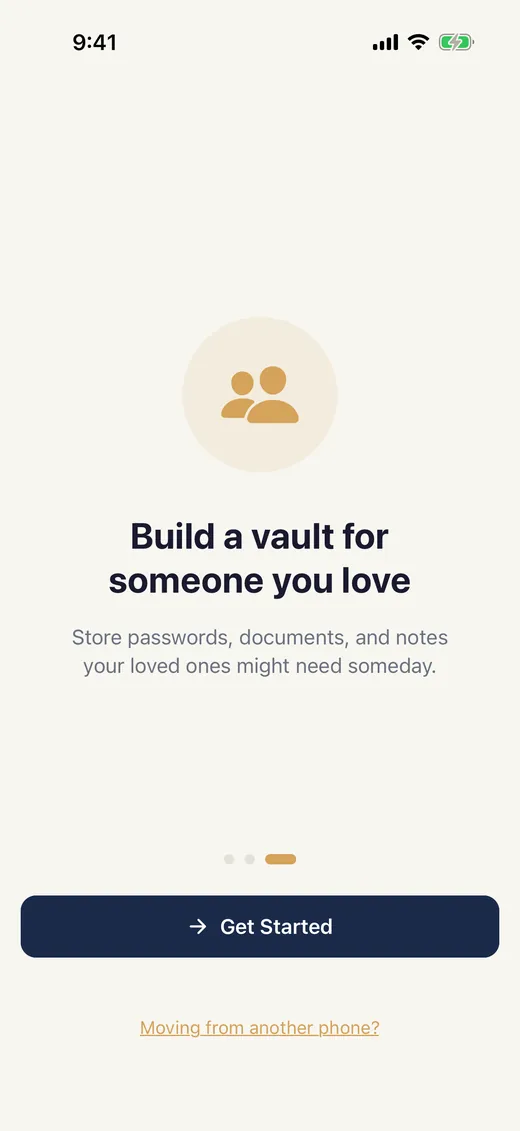
Get SecureKeep from the App Store or Google Play and open it. On the last welcome screen, tap Moving from another phone?. If the new phone already has a vault, go to Settings, then Import Vault from Backup.
-
Open the copy
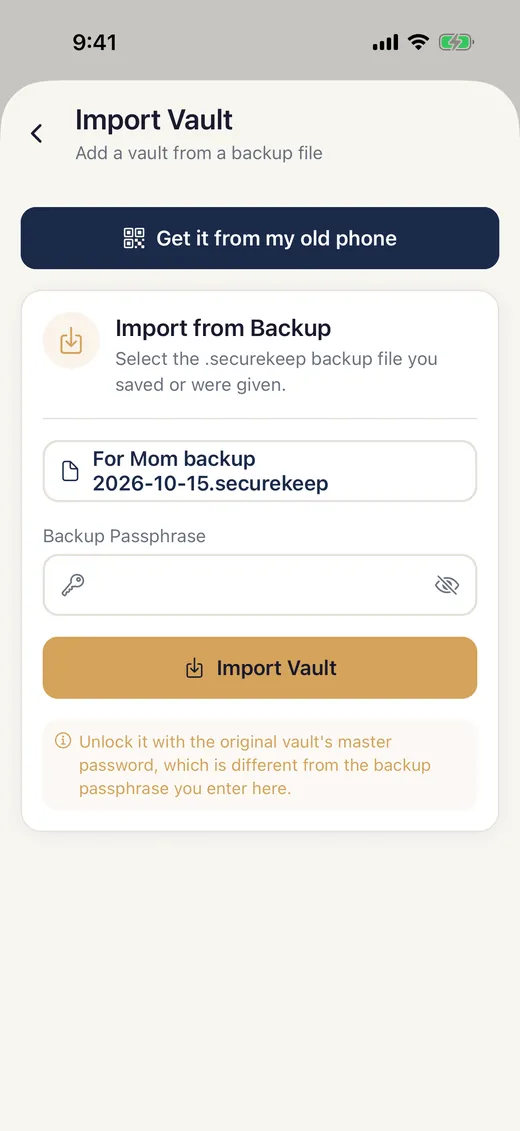
Choose the file you sent, type the passphrase for the copy, then tap Import Vault. Enter your master password when it asks. Nothing opens before you do.
-
Turn Face ID or fingerprint back on
Unlock with your master password the first time, then turn Face ID or fingerprint unlock on in Settings. It doesn't carry over from the old phone.
-
Tidy up
On the old phone, tap I've opened it on the new phone, and SecureKeep deletes its own copy of the file. Then delete the file from anywhere you sent it, like Downloads, Files or your cloud drive. Do this once for each vault you want to move.
Good to know
- This makes a separate copy. Changes on one phone won't show up on the other.
- Moving to a new phone needs both phones in your hands. If a phone is lost or broken, only a backup can bring your vault back.
- Face ID or fingerprint unlock needs setting up again on the new phone. Turn it on in Settings.
- Some Wi-Fi networks, like hotel, office or guest Wi-Fi, stop phones from seeing each other. Try your home Wi-Fi, or use the no-Wi-Fi option.
- Keep both phones unlocked with SecureKeep open until it finishes. If it stops, nothing is lost. Just start again.
If it doesn't work
- The new phone says Please update SecureKeep
- The copy was made by a newer version. Update SecureKeep on the new phone, then try again.
- The passphrase isn't accepted
- Use the passphrase you chose for the copy, not your master password. If you've lost it, make a new copy on the old phone.
- I can't find the file on the new phone
- Look in Downloads or the Files app. AirDrop and Quick Share usually save there.
- The old phone is lost or broken
- Moving needs both phones. Restore your most recent backup instead, with Import Vault from Backup.
- Scan a code says the phones can't reach each other
- Put both phones on your home Wi-Fi and turn off any VPN for a minute. Hotel, office and guest Wi-Fi often block this. Or choose No Wi-Fi nearby on both phones, or use the backup file steps above.
- I have more than one vault
- Move them one at a time. Open each vault and run Move to a new phone again.
Does your screen look different from this guide? Tell us and we'll update it.