Make a backup of your vault
A backup is an encrypted copy of one vault in a single file, so losing or breaking your phone doesn't mean losing the vault.
-
Find the backup screen
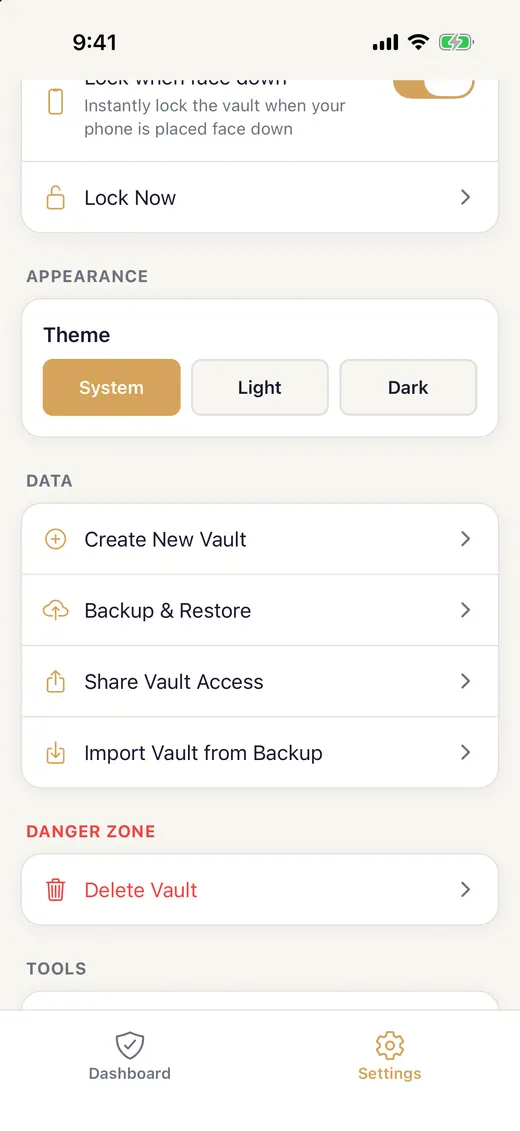
Unlock the vault you want to back up. Tap Settings at the bottom of the screen, then Backup & Restore in the Data section.
A backup holds one vault. If you keep more than one, switch to each in turn and back it up on its own.
-
Choose a backup passphrase
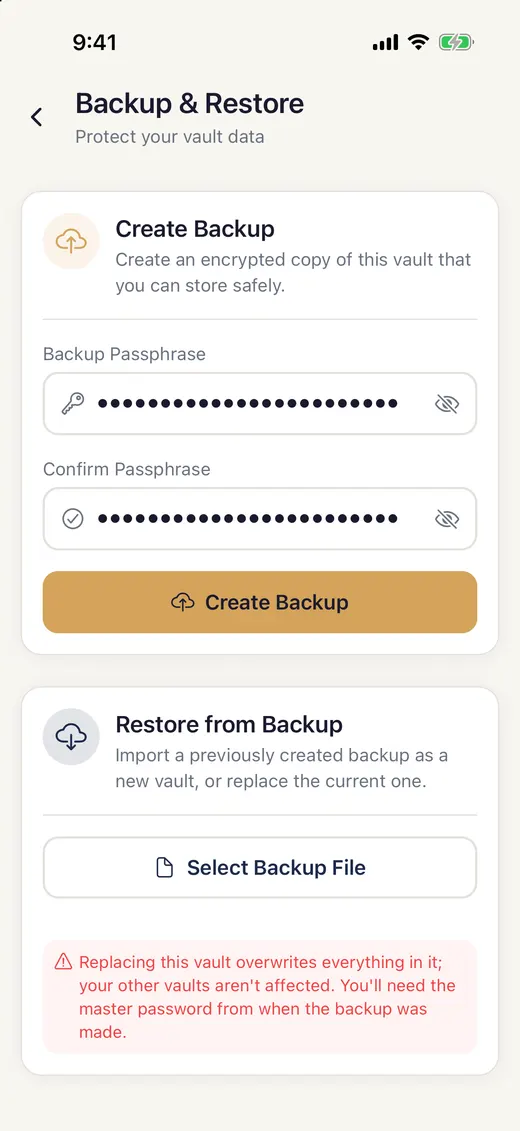
Under Create Backup, type a passphrase into Backup Passphrase, then again into Confirm Passphrase.
It needs at least 8 characters and has to be hard to guess. Four or five unrelated words work well. Make it different from your master password: this one only opens the backup file.
-
Make the backup file
Tap Create Backup. SecureKeep encrypts the vault into a single
.securekeepfile, named after the vault and the date, likeFor Mom backup 2026-10-04.securekeep. Your phone's share sheet opens with the file in it.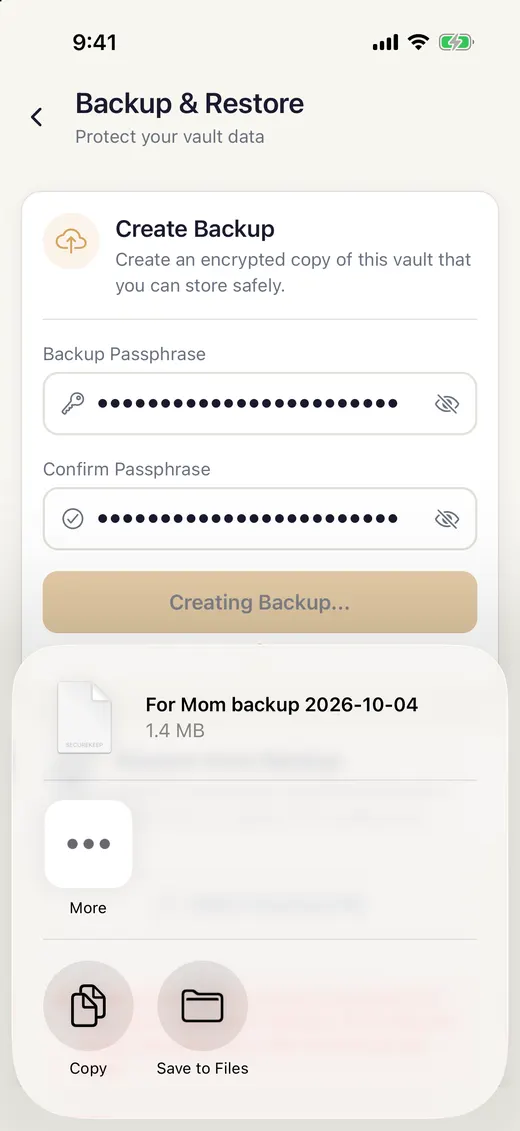
-
Save the file somewhere other than this phone
Pick somewhere you'd still have if this phone were lost:
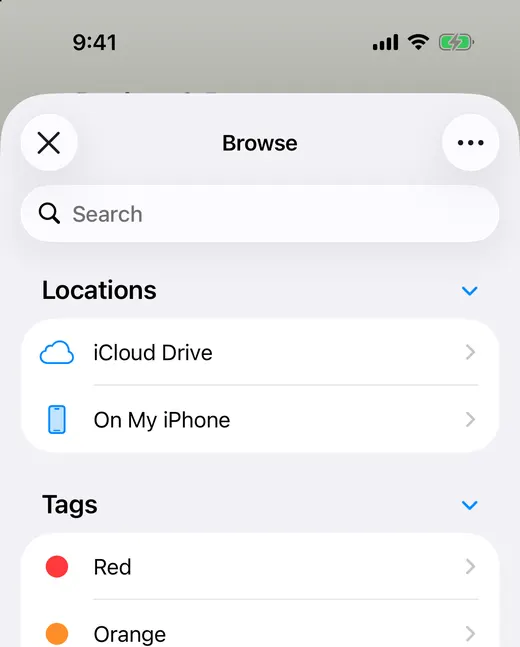
- On iPhone, tap Save to Files. It opens on On My iPhone, which is the one place not to keep it, so tap the back arrow and choose iCloud Drive or a connected USB drive.
- On Android, tap Drive to save it to Google Drive.
- On either, email it to yourself, or send it to your computer with AirDrop or Quick Share.
Save it before you close the share sheet. SecureKeep deletes its own copy as soon as the sheet closes, so if you close it without saving, make the backup again.
-
Keep the passphrase somewhere else
Write the backup passphrase down and keep it apart from the file: the file in cloud storage or on a drive, say, and the passphrase on paper at home or with your will. Anyone who has both can open the backup, and if you lose the passphrase, nobody can.
A restored vault still asks for its master password, so keep that where your family can find it as well. The Recovery Kit in Settings > Share Vault Access is made for this.
Good to know
- Without a backup, a lost phone means a lost vault. Back up after big changes.
- A backup is a copy of one vault as it was when you made it. Anything you add later isn't in it until you make a new one.
- Restoring takes two things: the backup passphrase to open the file, then the vault's master password from when you made the backup.
- To restore, go to Settings > Backup & Restore and use Restore from Backup. On a new phone, tap Already have a SecureKeep backup? Restore it when SecureKeep asks you to create a vault.
- Making and restoring backups is free, with or without Pro.
If it doesn't work
- It says "Please choose a stronger passphrase"
- The passphrase is too easy to guess. Add another word or two; length helps more than symbols do.
- It says "Passphrases do not match"
- The two boxes are different. Tap the eye icon in each box to see what you typed, then fix the one that's wrong.
- A message says "Backup Is Incomplete"
- Some items couldn't be read and the message lists them. Tap Cancel, open each listed item to check it, and try again. Continue Anyway makes a backup without them.
- The share sheet closed and the file isn't anywhere
- Nothing was saved, because SecureKeep deletes its copy when the sheet closes. Make the backup again and save the file before you close the sheet.
- Restoring says "Incorrect backup passphrase"
- Use the passphrase you typed when you made this backup, which isn't your master password.
Does your screen look different from this guide? Tell us and we'll update it.