Put your emergency card on your lock screen
Turn your emergency card into a lock-screen image that shows only what a first responder needs.
-
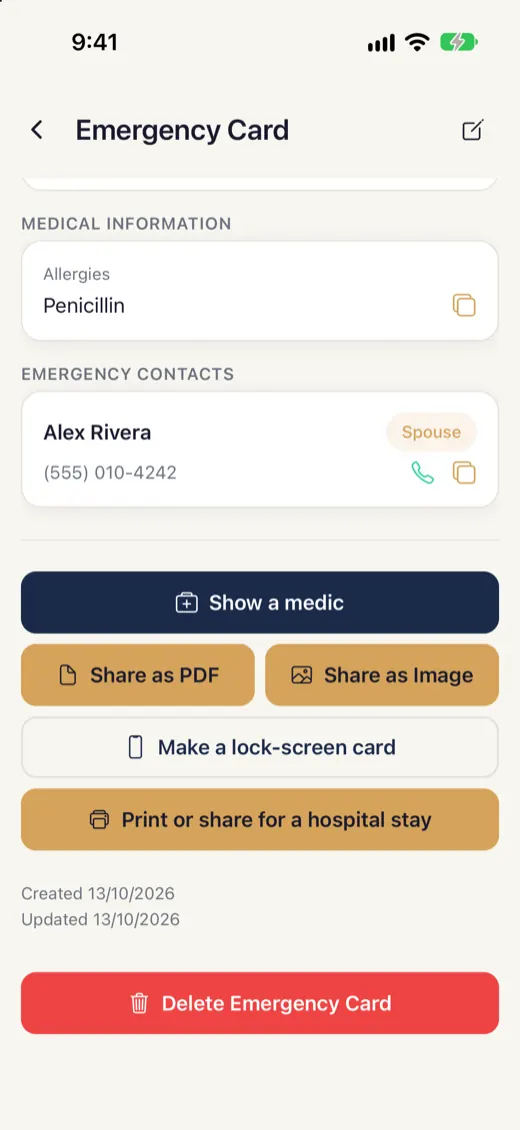
Open your emergency card
Open your vault, then Emergency Card, and choose Make a lock-screen card.
-
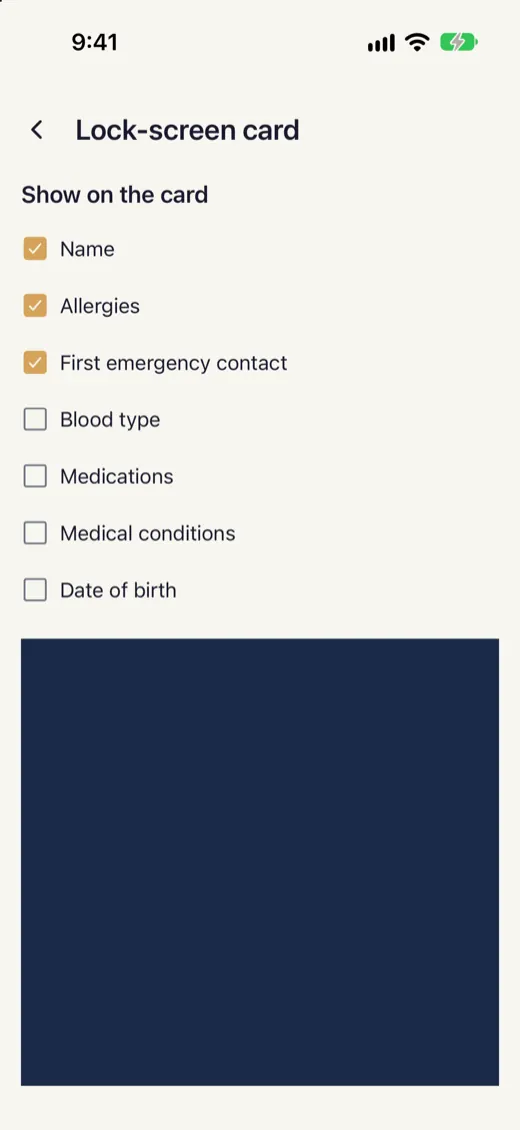
Choose what shows
Switch on only the details you want on the screen, such as your name, allergies and an emergency contact. Everything else stays out of the image.
-
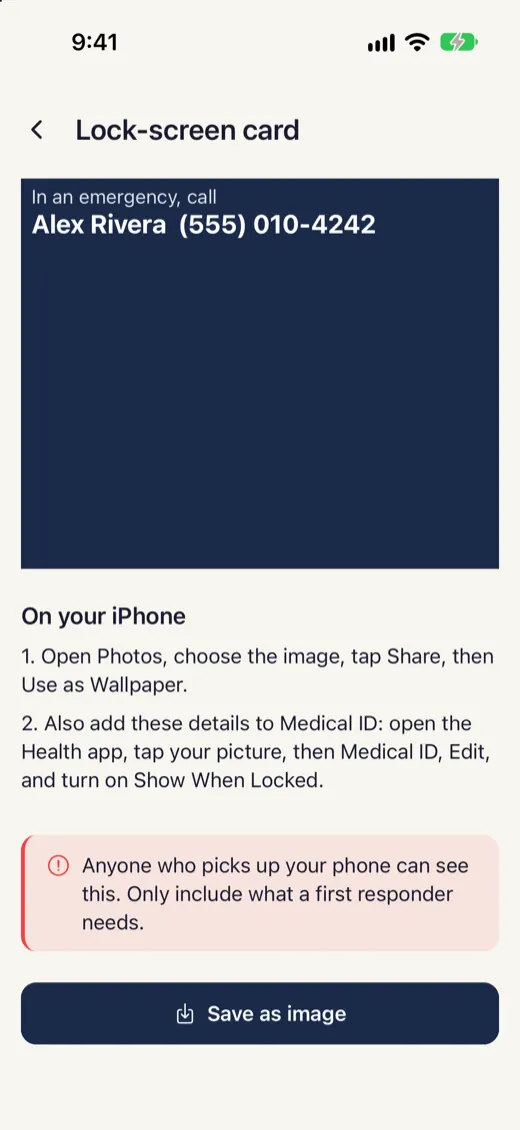
Preview it
SecureKeep draws the image with space left for the clock and buttons. Check that nothing important sits under them.
-
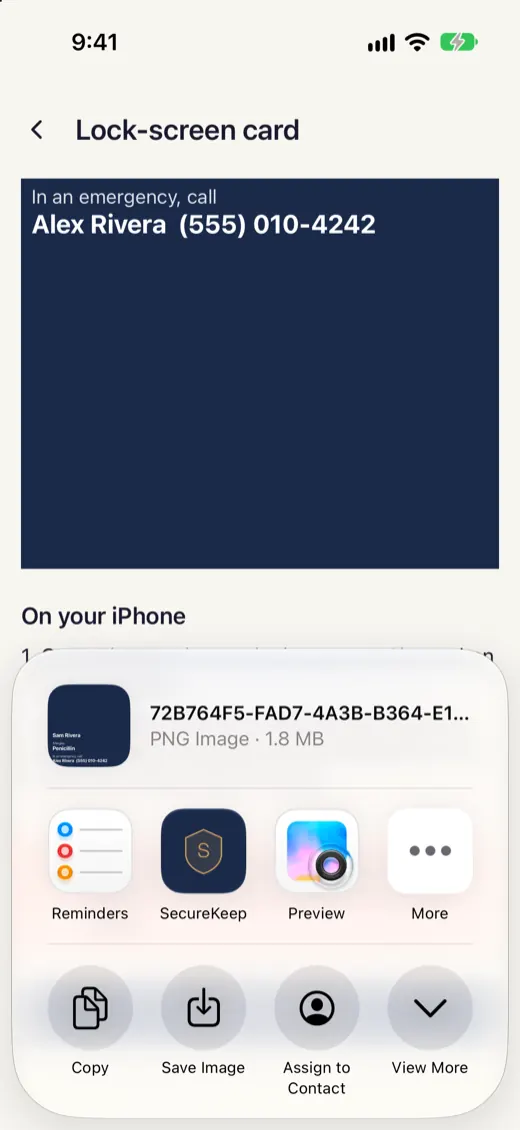
Save the image and set it as your wallpaper
Tap Save image and allow adding to Photos if your phone asks. Then set the saved picture as your lock screen in your phone's wallpaper settings.
Good to know
- Anyone who picks up your phone can see this. Only include what a first responder needs.
If it doesn't work
- The clock covers part of the card
- Make the card again and check the preview. Pick a wallpaper position that keeps the card below the clock, and leave the widgets row empty.
- Nothing was saved to Photos
- SecureKeep only saves when you tap Save image. If your phone asked to add to Photos and you said no, allow it for SecureKeep in your phone's Settings and try again.
- I changed my details
- The picture doesn't update by itself. Make a new card and set it as your wallpaper again.
Does your screen look different from this guide? Tell us and we'll update it.