Make a legacy tag for your safe
A legacy tag is an NFC sticker you keep with your Recovery Kit. When your family taps it with a phone, SecureKeep opens its restore screen, so they know where to start.
-
Get a blank NFC sticker
Buy blank NFC stickers marked NTAG213, NTAG215 or NTAG216. They cost a few dollars for a pack online. You'll also need a phone with NFC: most Android phones, or an iPhone XS or later.
-
Open Make a legacy tag for your safe
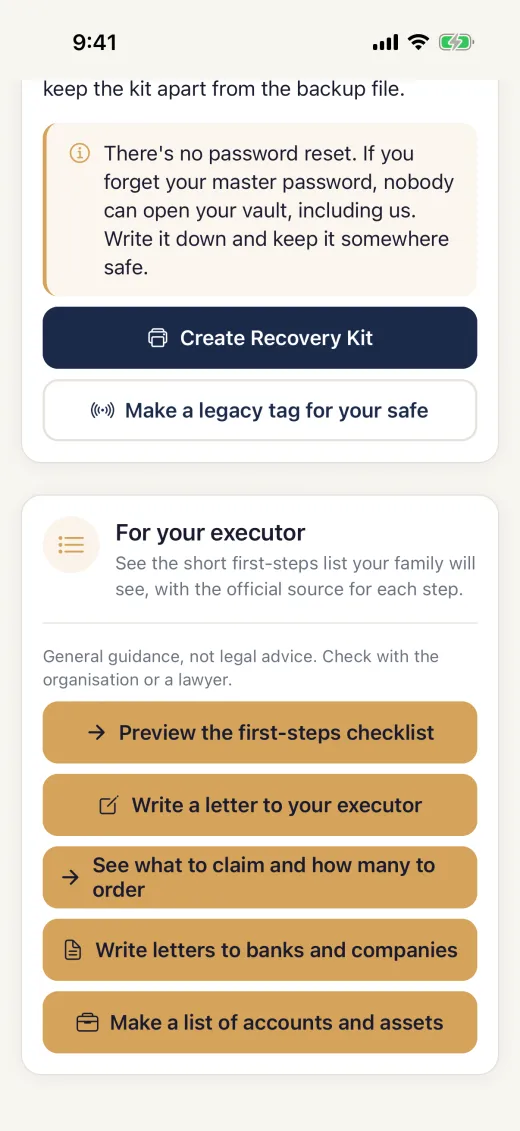
In SecureKeep, go to Settings, then Share Vault Access. Under the Recovery Kit, tap Make a legacy tag for your safe.
The button only shows on phones that have NFC.
-
Write the tag
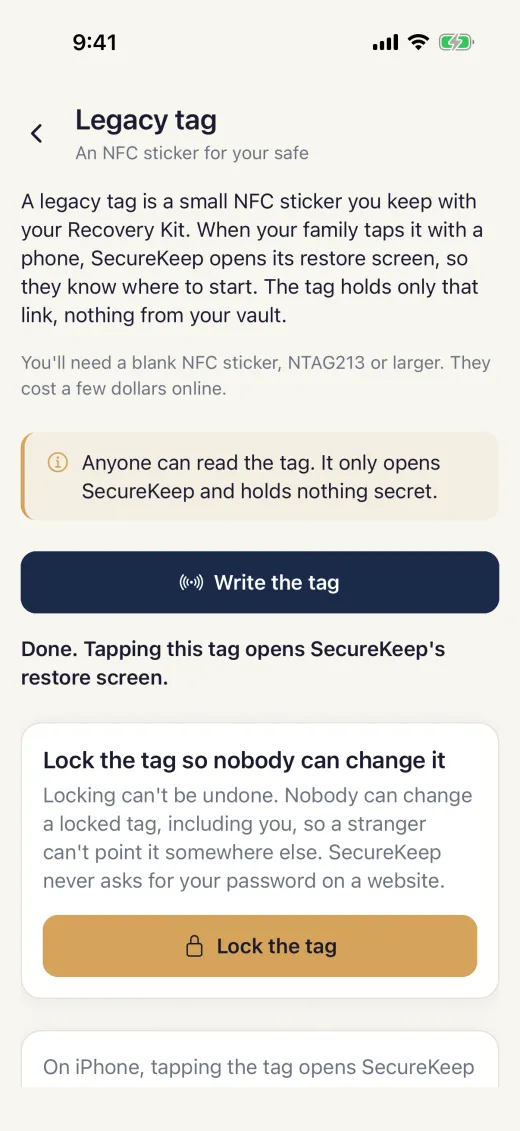
Tap Write the tag and hold the sticker against your phone: the back of an Android phone, or the top of an iPhone. Keep it still until you see "Done. Tapping this tag opens SecureKeep's restore screen."
SecureKeep writes one link and nothing from your vault.
-
Lock the tag
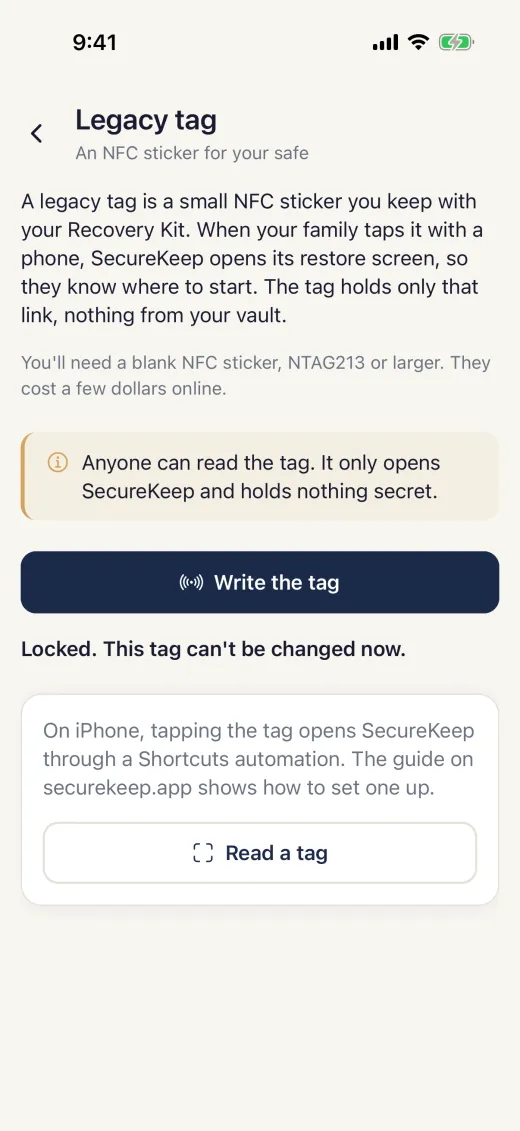
Tap Lock the tag and hold the sticker against the phone again. Locking can't be undone: nobody can change a locked tag, including you, so a stranger can't point it somewhere else.
SecureKeep only locks a tag that holds its own link.
-
Check it, and set up an iPhone
On Android, tap the tag with the phone unlocked and SecureKeep opens its restore screen, or its Play Store page if it isn't installed.
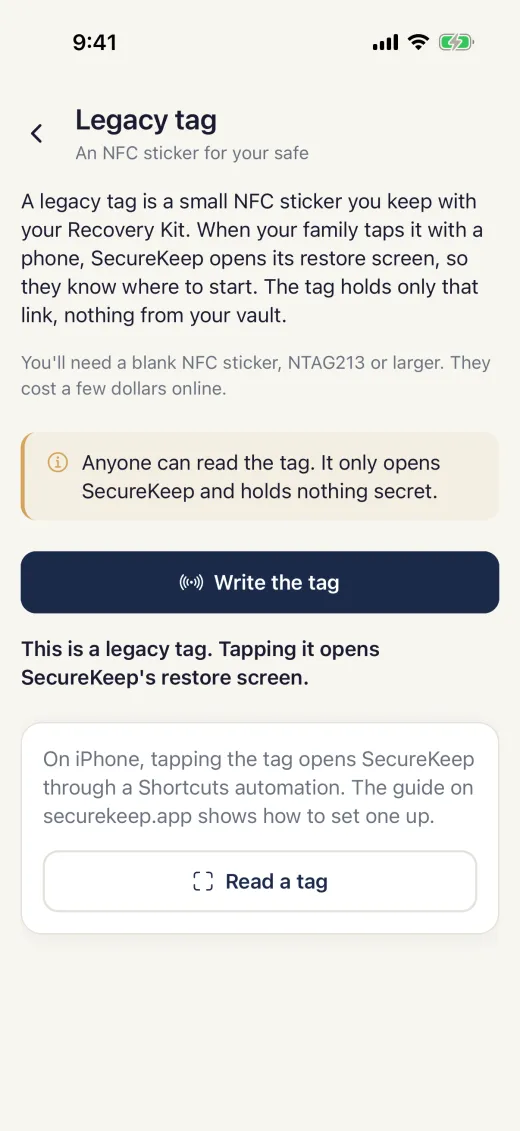
On iPhone, tap Read a tag in SecureKeep to check it. To make an iPhone open SecureKeep from the tag, open Shortcuts, tap Automation, then New Automation and NFC. Scan the tag, tap Next, and add the Open URLs action with securekeep://restore.
-
Put it in the safe
Stick the tag inside the safe, folder or drawer where your Recovery Kit lives, and tell your family it's there.
The tag only gets them to the right screen. They still need the backup file, its passphrase and your master password from the kit.
Good to know
- Anyone can read the tag. It only opens SecureKeep and holds nothing secret.
- SecureKeep never holds a copy of your vault, so it can't release it automatically. That's why the Recovery Kit and your legacy contact matter.
- SecureKeep never asks for your password on a website. If tapping a tag ever opens a page that does, it isn't yours.
- Making a legacy tag is free, with or without Pro.
If it doesn't work
- There's no Make a legacy tag button
- Your phone doesn't have NFC. Another phone in the family can make the tag; the tag works on any phone with NFC.
- It says "Turn on NFC in Settings, then try again."
- On Android, tap Open NFC settings, turn NFC on, and come back.
- It says "This tag can't be written."
- The sticker is locked already, isn't an NFC Forum tag, or is too small. Use a new blank NTAG213 sticker or larger.
- It says "That didn't work."
- The sticker moved before writing finished. Hold the phone still against it and try again. Metal behind the sticker can block it, so write it before you stick it to a metal safe.
- Tapping the tag does nothing on Android
- Unlock the phone and check NFC is on. If SecureKeep was force stopped, open it once first.
- Tapping the tag does nothing on iPhone
- iPhone needs the Shortcuts automation from step 5, or Read a tag in SecureKeep.
Does your screen look different from this guide? Tell us and we'll update it.