Save a family copy to your cloud drive
Save an encrypted family copy to your cloud drive, then let Apple or Google deliver it to the people you choose.
-
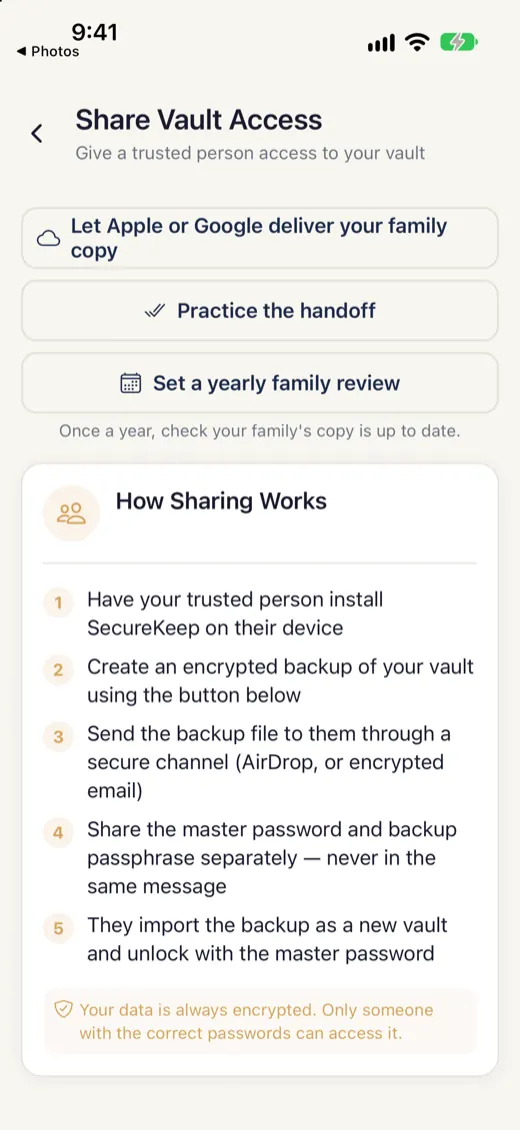
Open your family copy
Go to Settings › Share Vault Access and open Your family copy.
-
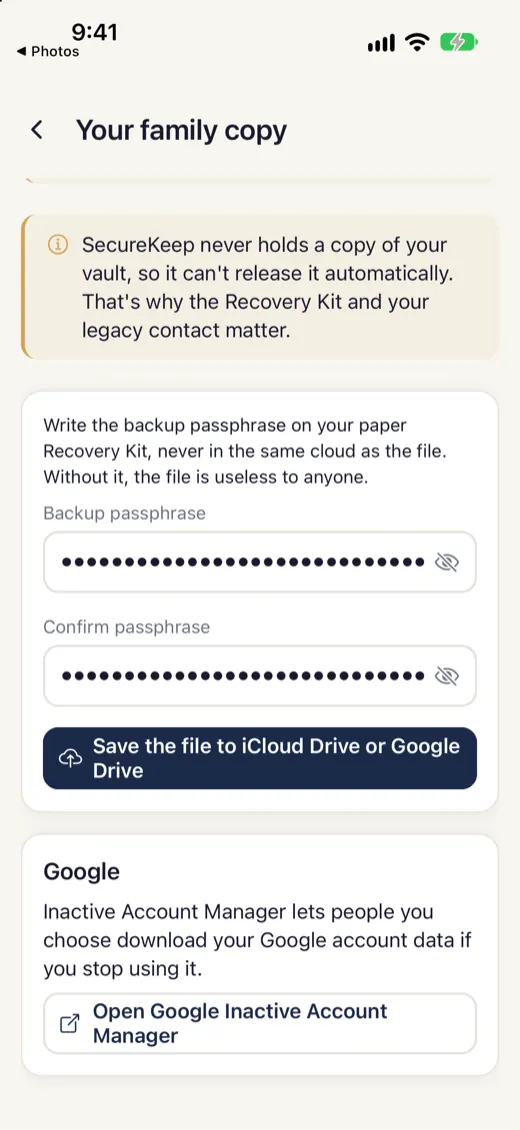
Choose a passphrase
Pick a backup passphrase and write it down. Your family needs it, and it isn't your master password.
-
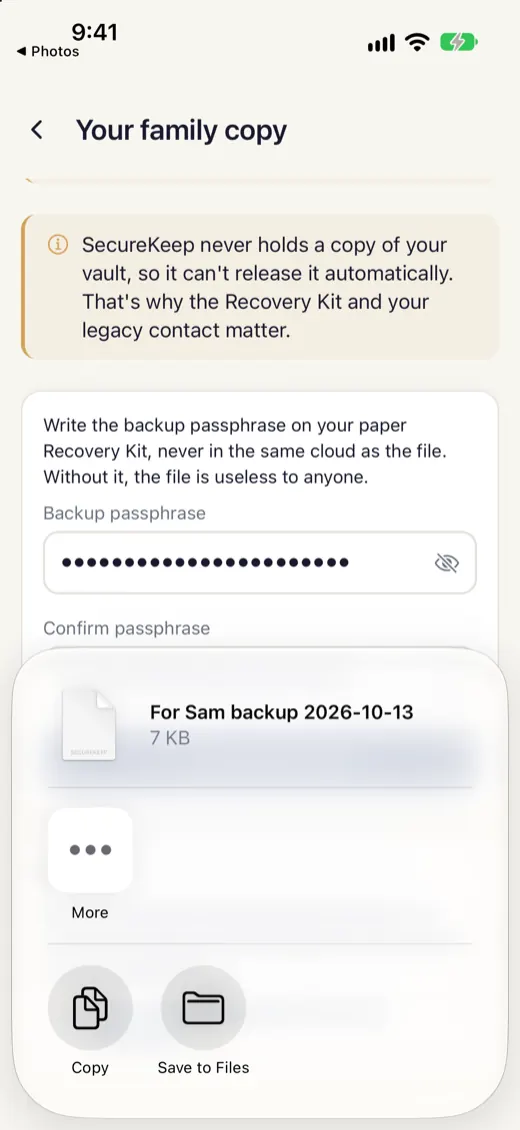
Save it to your cloud drive
Tap Save the file to iCloud Drive or Google Drive and choose the drive.
-
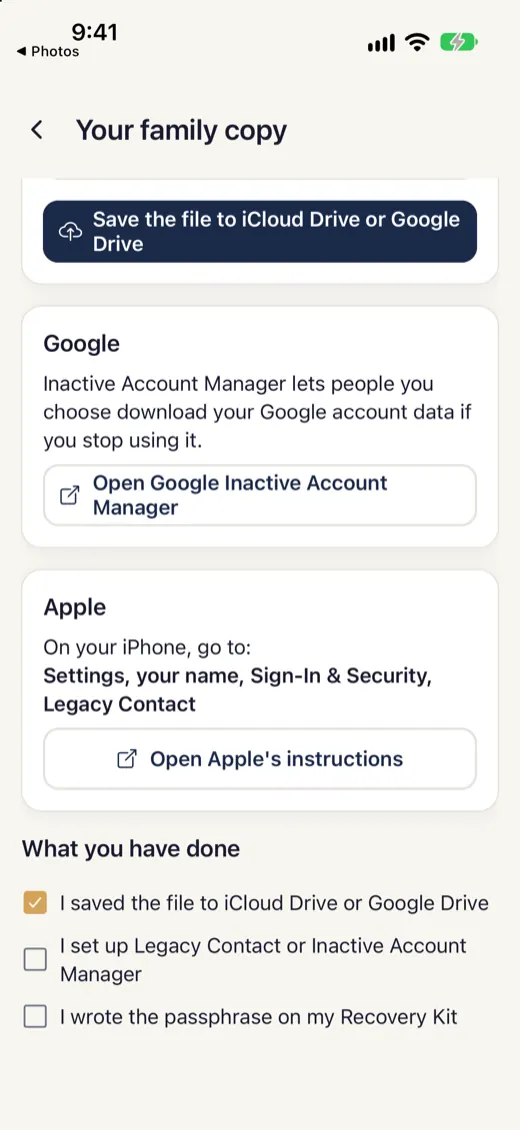
Choose who gets it
On iPhone, go to Settings, your name, Sign-In & Security, Legacy Contact. On Android, open Google's Inactive Account Manager. SecureKeep has buttons for both. Then tick off what you've done, including writing the passphrase on your Recovery Kit.
Good to know
- SecureKeep can't check whether Legacy Contact is set up. Your family will also need your backup passphrase, so write it down and keep it somewhere separate from the file.
If it doesn't work
- Legacy Contact doesn't pass on my passwords
- It doesn't pass on passwords or passkeys saved in iCloud Keychain. That's why you save an encrypted family copy of your SecureKeep vault instead.
- My family copy is out of date
- SecureKeep shows how long since you last made a copy. Make a new one from Share Vault Access and replace the old file.
Does your screen look different from this guide? Tell us and we'll update it.