Add the SecureKeep widget
The widget shows how ready one vault is and how long since your family last got a copy, so you notice when it's time to update without opening SecureKeep.
-
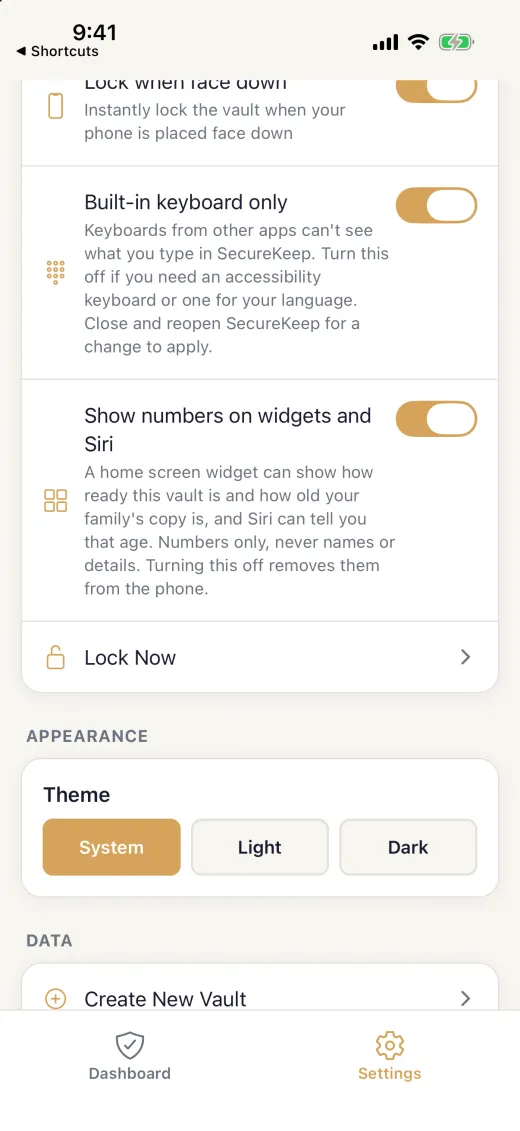
Turn on Show numbers on widgets
Unlock the vault you want the widget to show. Tap Settings, then turn on Show numbers on widgets in the Security section. On iPhone it's called Show numbers on widgets and Siri, because Siri can tell you the same family-copy age.
The widget shows one vault: the one you turned this on in. Turning it on in another vault moves the widget to that vault.
-
Add the widget to your home screen
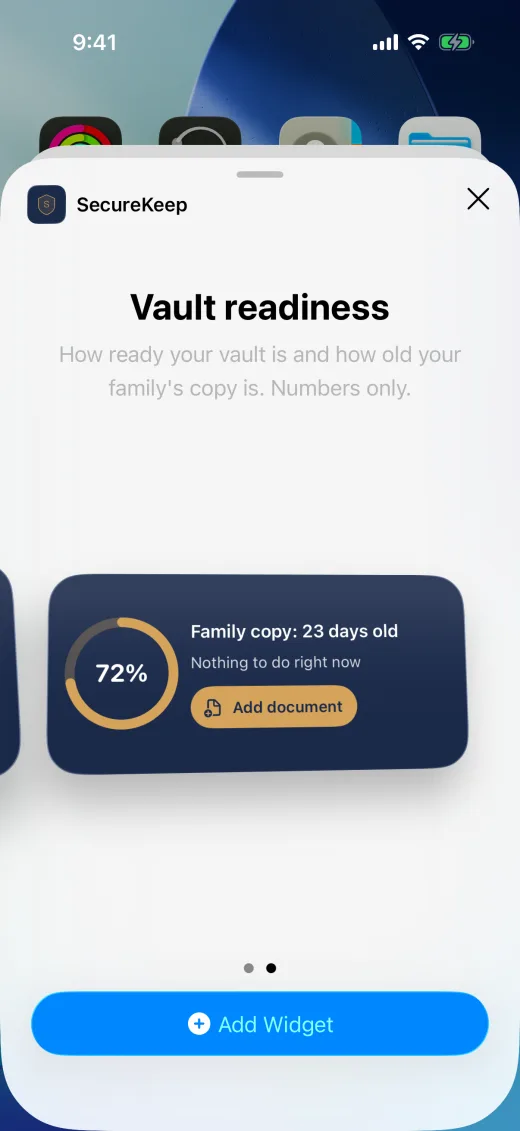
On iPhone, touch and hold an empty part of the Home Screen, tap Edit, then Add Widget. Search for SecureKeep, pick the small or medium size and tap Add Widget. The preview shows made-up numbers; yours appear once it's on the Home Screen.
On Android, touch and hold an empty part of the home screen, tap Widgets, search for SecureKeep, tap Vault readiness, then Add.
-
Read what it says
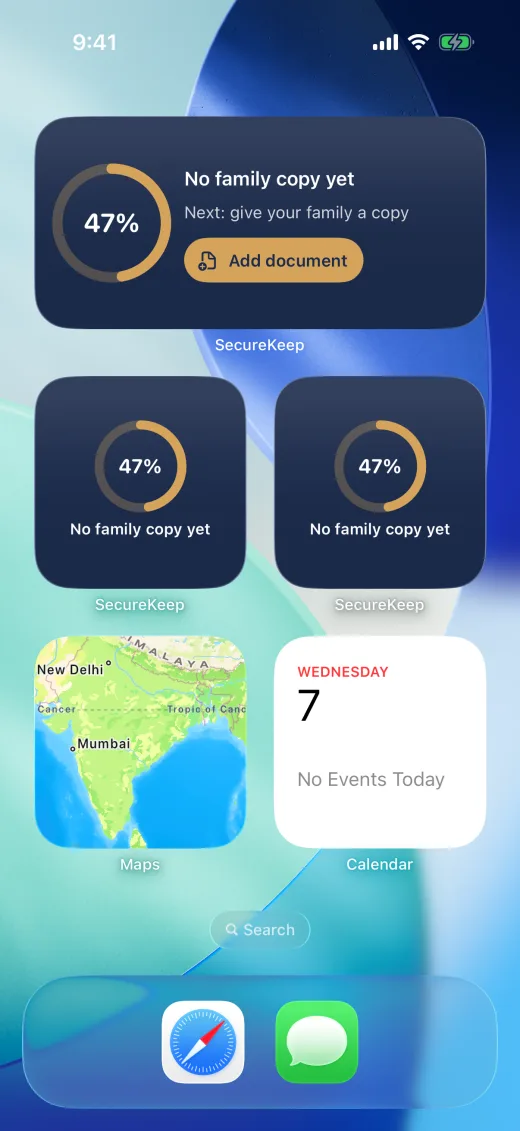
The ring is how much of the What's missing checklist this vault covers. Family copy says how long since you last made a backup or printed the Recovery Kit, or No family copy yet.
The medium size adds one general next step, such as giving your family a copy. The numbers update each time SecureKeep locks.
-
Add a document from the widget
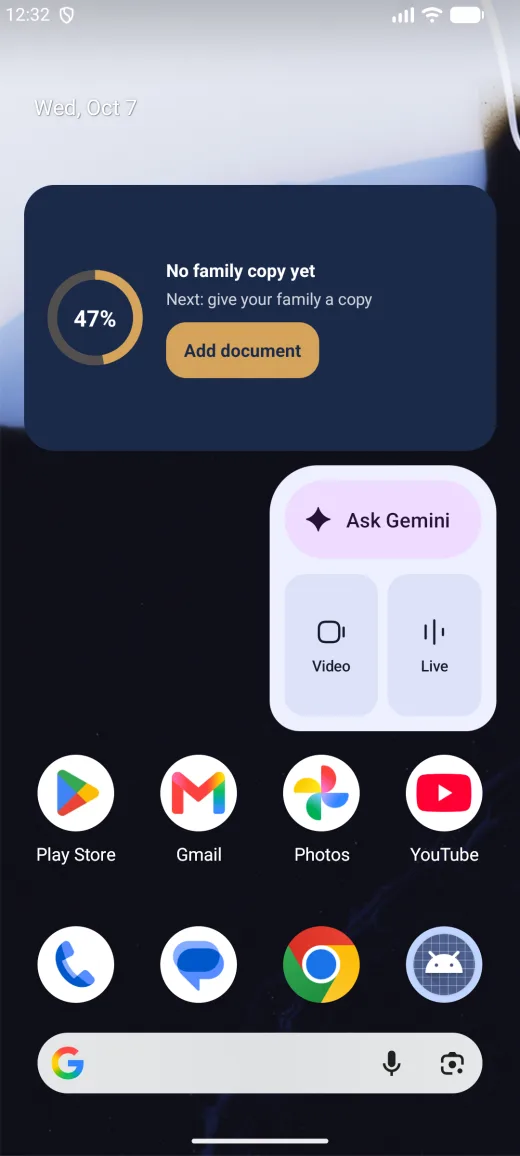
On the medium iPhone widget, or an Android widget made wider, tap Add document. SecureKeep asks you to unlock first, then opens Add Document.
-
Turn it off
In Settings, turn off Show numbers on widgets. SecureKeep wipes the numbers from the phone, and the widget says “Open SecureKeep to turn on the widget.” To take the widget away as well, touch and hold it and remove it.
Good to know
- The widget shows you use SecureKeep, but none of your details.
- It only reads the numbers SecureKeep leaves for it. It can't open your vault, and nothing it shows comes from your passwords, documents or notes.
- On Android it goes on the home screen only, never the lock screen.
- The widget is free, with or without Pro.
If it doesn't work
- It says "Open SecureKeep to turn on the widget."
- Show numbers on widgets is off. Unlock the vault you want it to show and turn it on in Settings.
- The numbers haven't changed
- They update when SecureKeep locks. Open SecureKeep, then lock it or leave the app.
- There's no Add document button
- The small size has no room for it. On iPhone, add the medium size; on Android, touch and hold the widget and drag its edge to make it wider.
- SecureKeep isn't in the widget list
- Update SecureKeep and open it once, then look again.
- On Android, tapping the widget does nothing
- Android turns off an app's widget buttons after Force stop. Open SecureKeep once and they work again.
Does your screen look different from this guide? Tell us and we'll update it.